How to Fix Steam Error -105 and -118: Server Connection Timed Out
eeing Error Code -105 or -118 on Steam? Here is how to fix DNS resolution failures, bypass ISP routing timeouts, and restore store connections immediately.
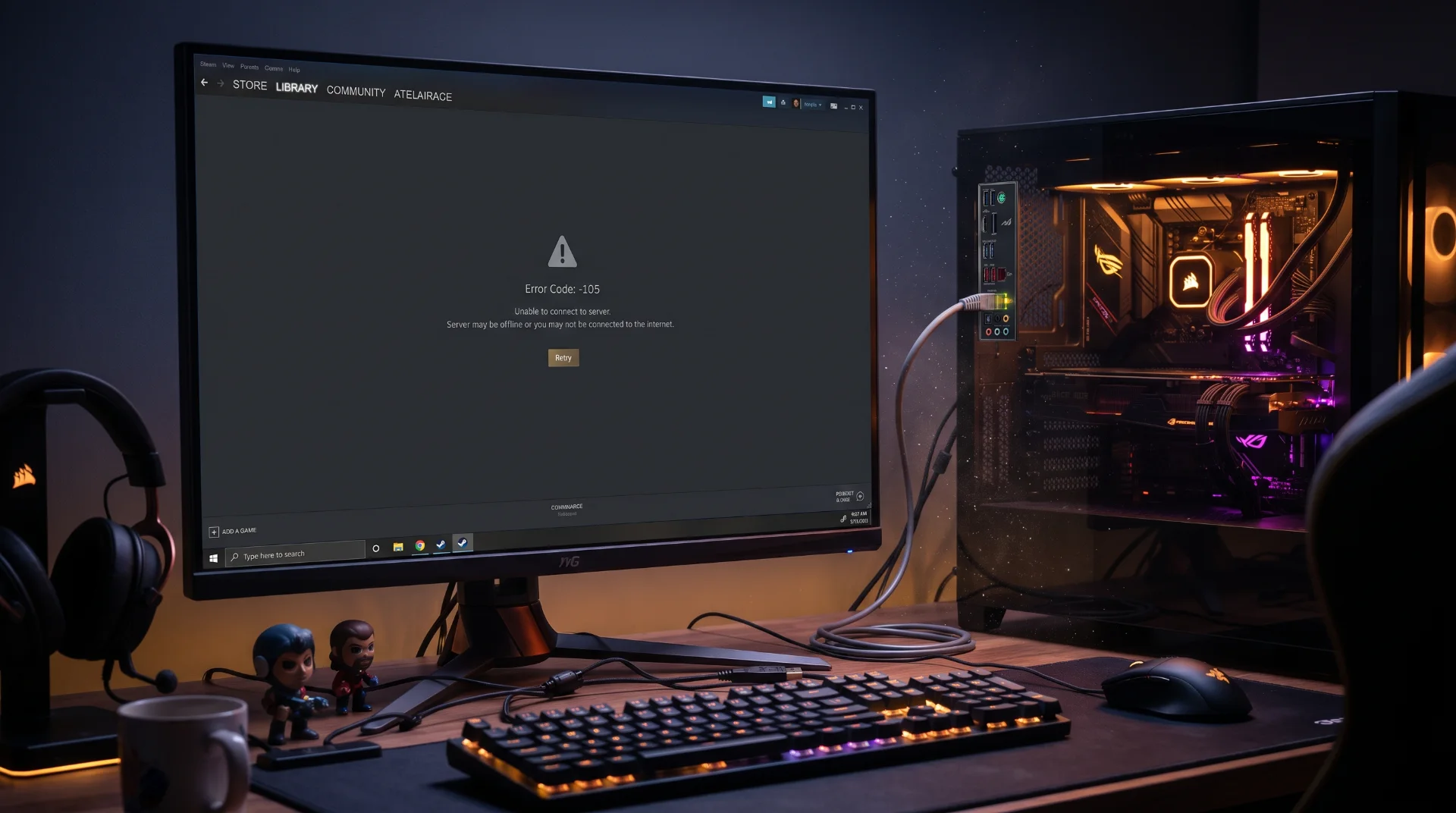
Connection Dropped: Resolving Steam Errors -105 and -118
Encountering a numerical connection code like Error Code: -105 or Error Code: -118 indicates that your local client cannot establish a TCP handshake with Valve’s content delivery network. The store fails to load, community pages disappear, and your client enters an isolated state.
Search spikes around steam error and internet speed test highlight that players frequently confuse these network socket errors with overall internet outages.
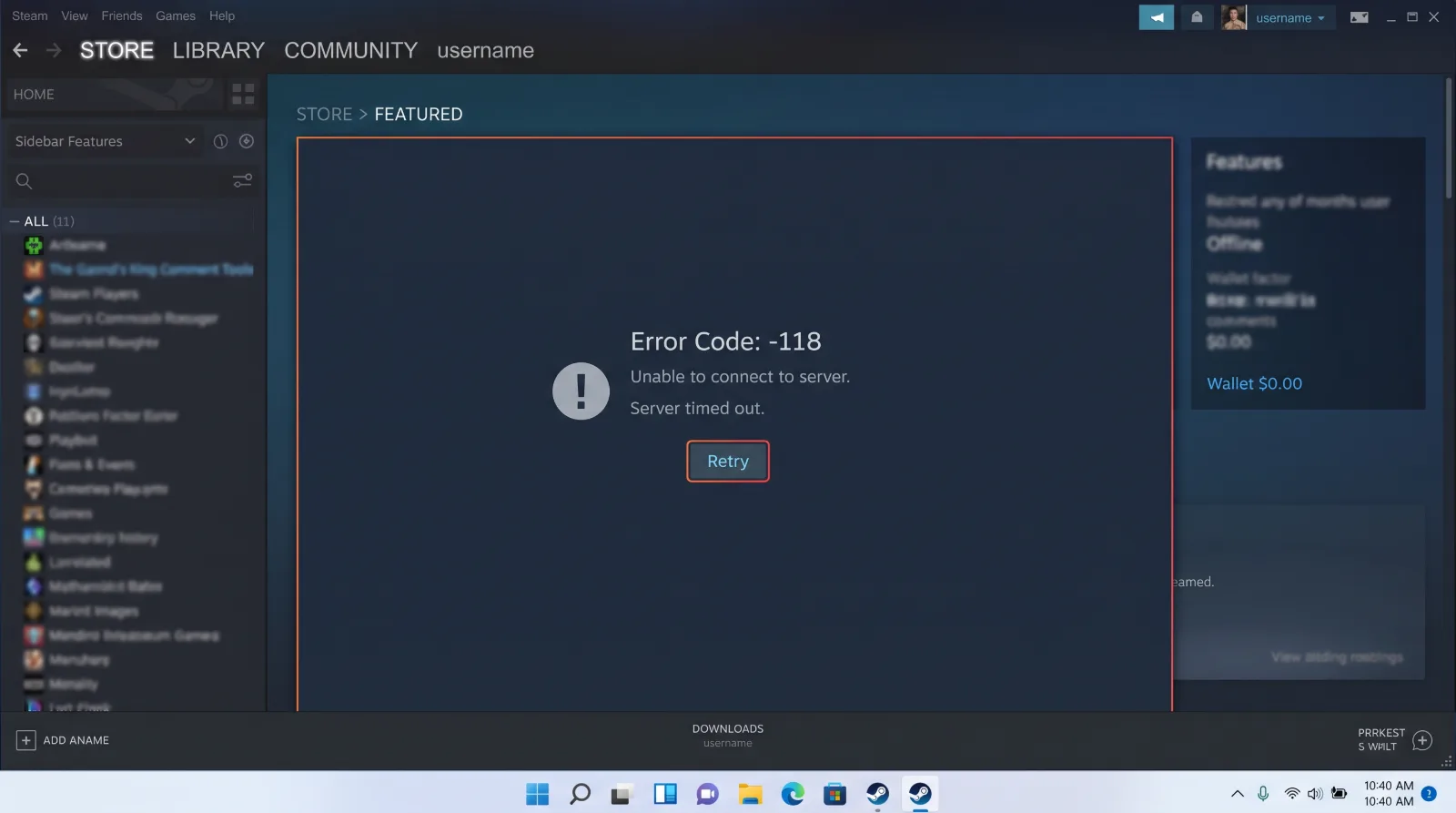
Below is an engineering guide to resolving DNS translation failures and eliminating timeout errors on Steam.
Deciphering Error -105 vs. Error -118
While both codes represent network failures, their technical causes differ:
- Error -105 (DNS Resolution Failure): The client cannot resolve Valve’s domain names into numeric IP addresses. This is typically caused by corrupted local DNS caches or malfunctioning ISP nameservers.
- Error -118 (Connection Timed Out): Your computer resolved the domain, but the target server failed to acknowledge the connection packet within the allotted timeout window, often due to strict firewall blocking.
Step-by-Step Fix: Switching to Public DNS Resolvers
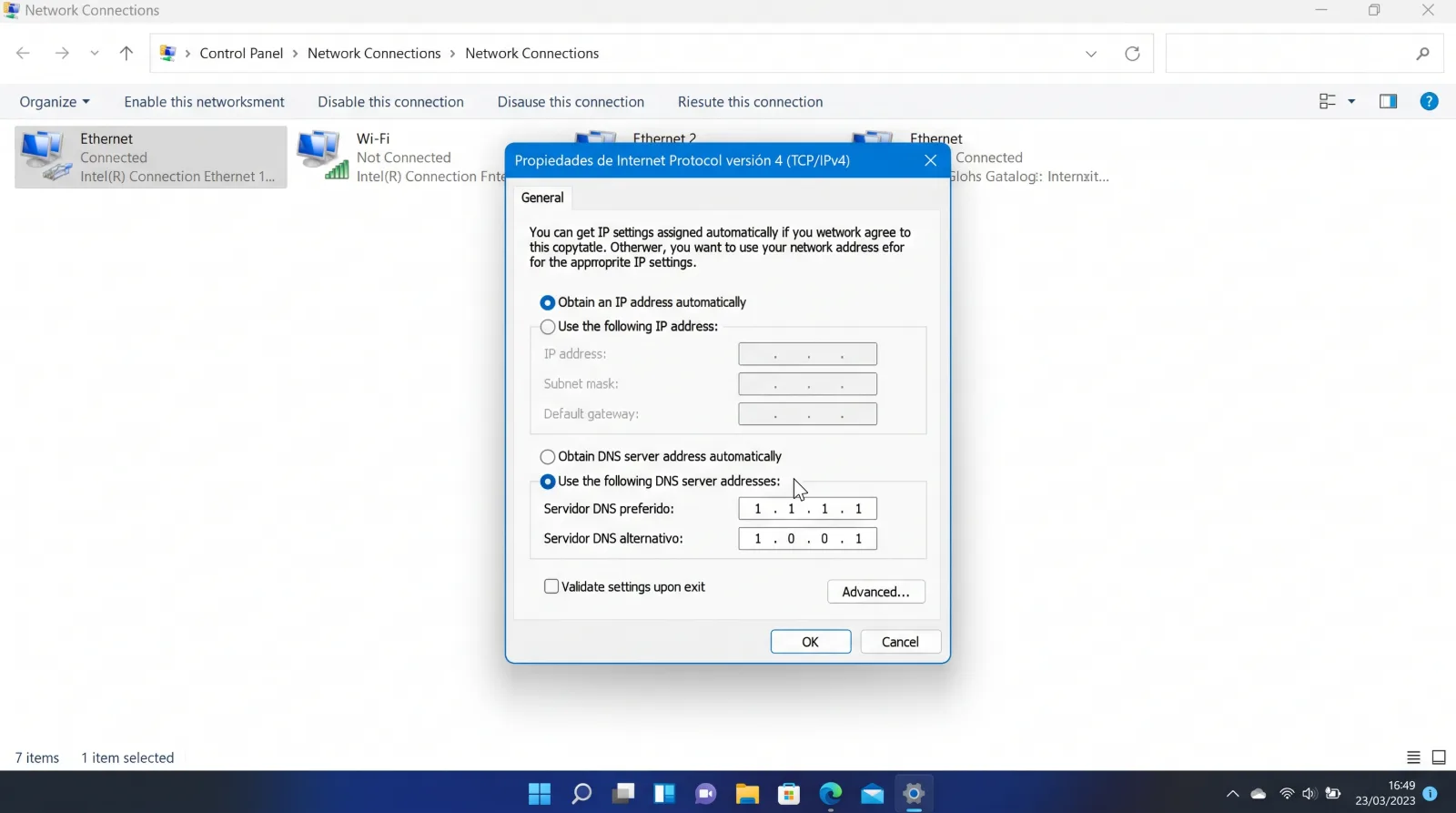
Replacing slow ISP default DNS servers resolves Error -105 instantly:
Step 1 Open Network Connections:
Press Windows Key + R, type ncpa.cpl, and press Enter.
Step 2 Open Adapter Properties:
Right-click your active network adapter (Ethernet or Wi-Fi) and select Properties.
Step 3 Configure IPv4 DNS Settings:
Double-click on Internet Protocol Version 4 (TCP/IPv4).
Select Use the following DNS server addresses:
Preferred DNS: 1.1.1.1 (Cloudflare) or 8.8.8.8 (Google)
Alternate DNS: 1.0.0.1 or 8.8.4.4
Click OK to save.
Step 4 Flush DNS in Command Prompt:
Open Command Prompt as Administrator and run ipconfig /flushdns. Relaunch Steam to verify connectivity.
Learn how to optimize system storage after restoring network connections by reading our news and tips section.