Why Steam Downloads Stop at 100% or 99%: Unpacking vs. Stalled Installs
Steam, Steam Download, Download Stuck at 100, Steam Unpacking, Disk Usage, PC Gaming, Installation Fix, Troubleshooting
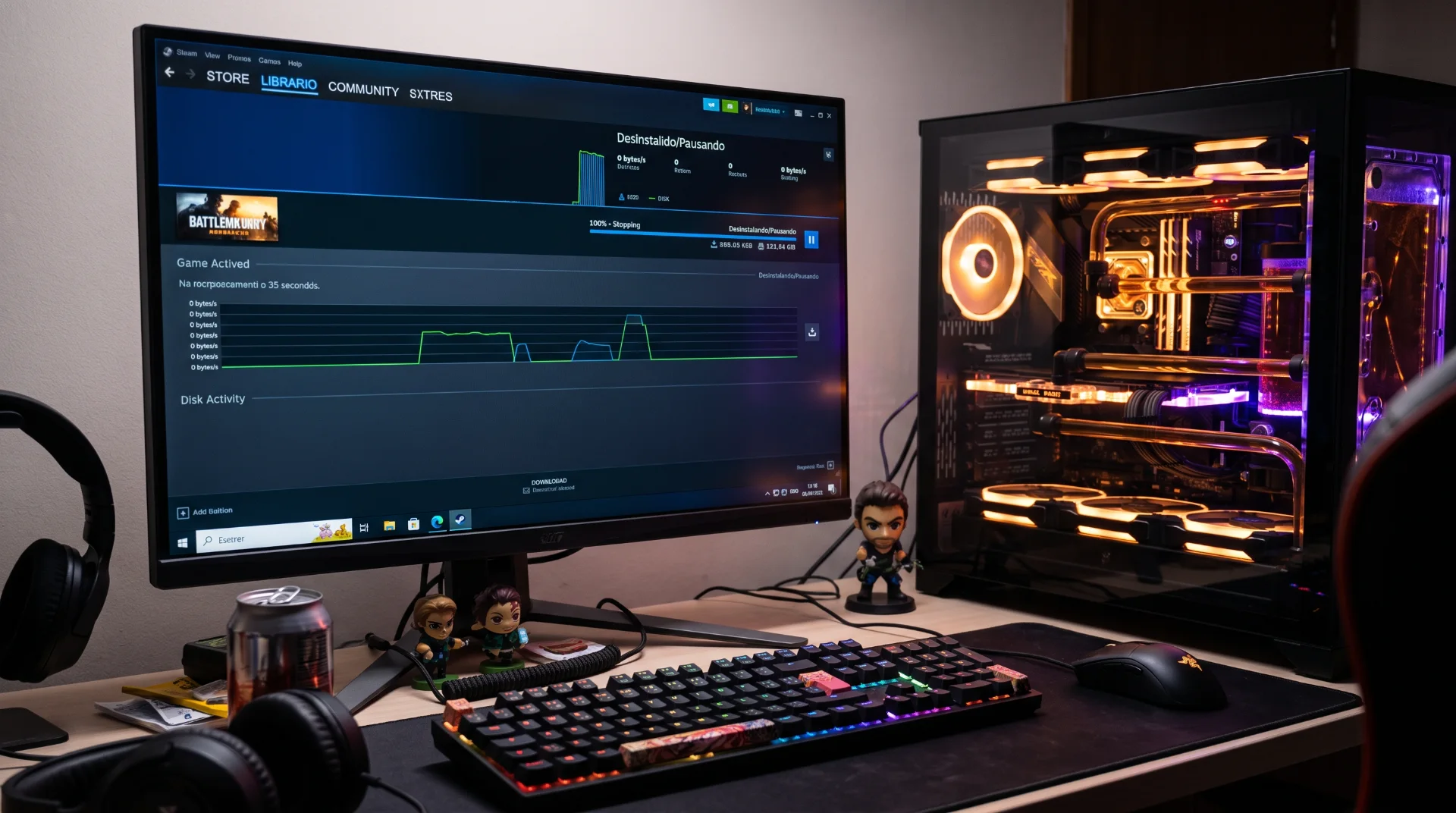
The 100% Paradox: Why Steam Downloads Appear Frozen at the Finish Line
Few scenarios cause as much confusion as watching a massive 80-gigabyte game download reach 99% or 100%, only for progress to freeze entirely while network activity drops to absolute zero. Players often assume the client crashed and restart the download, inadvertently wiping out hours of progress.
Persistent search volume across steam download and download steam shows that download allocation and patching phases remain misunderstood across the community.
Below is an engineering explanation of the difference between file downloading and background unpacking, and how to verify if your installation is genuinely stuck.
Understanding the Difference: Downloading vs. Unpacking
Modern game delivery architecture relies on heavy file compression to minimize bandwidth usage:
- The Network Download Phase: Steam pulls heavily compressed, encrypted asset archives from Valve’s servers. During this phase, network bandwidth is high.
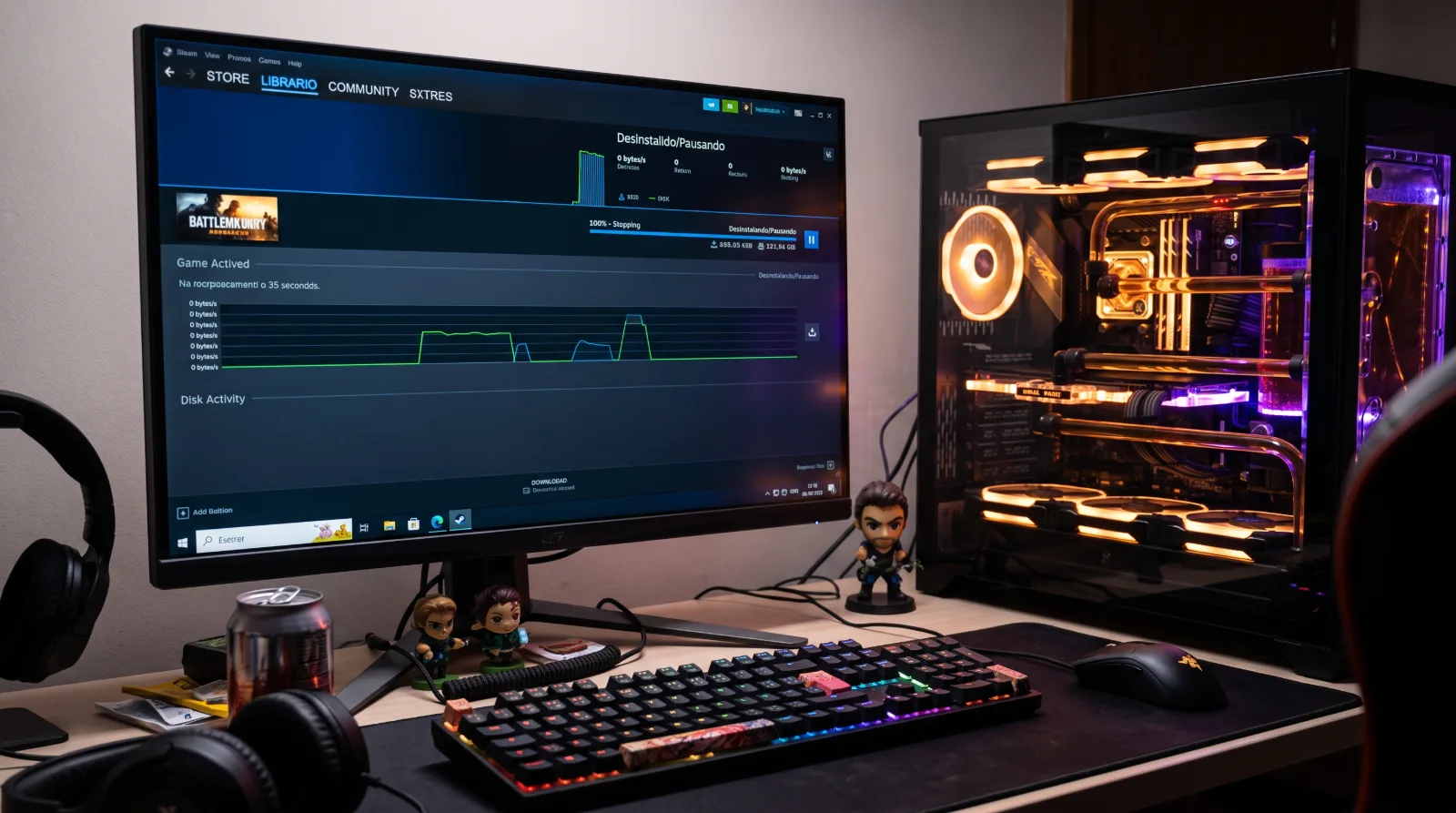
- The Disk Allocation and Unpacking Phase: Once assets download, your CPU and storage drive must decrypt and unpack these archives into playable folder structures. During this phase, network usage drops to zero while disk usage spikes.
- The False Freeze: Because the visual progress bar measures total downloaded bytes rather than disk allocation, the meter frequently rests at 100% while your SSD works through gigabytes of background restructuring.
How to Verify Active Drive Progress
Before pausing or terminating Steam, verify whether your hardware is actively unpacking:
Step 1 Inspect Disk Activity in Steam:
Look below the main download bar in Steam. If the blue Network line is flat at 0 B/s, but the green Disk line shows active read/write speeds (e.g., 50 MB/s to 300 MB/s), the installation is healthy. Allow it to finish without interruption.
Step 2 Check Task Manager:
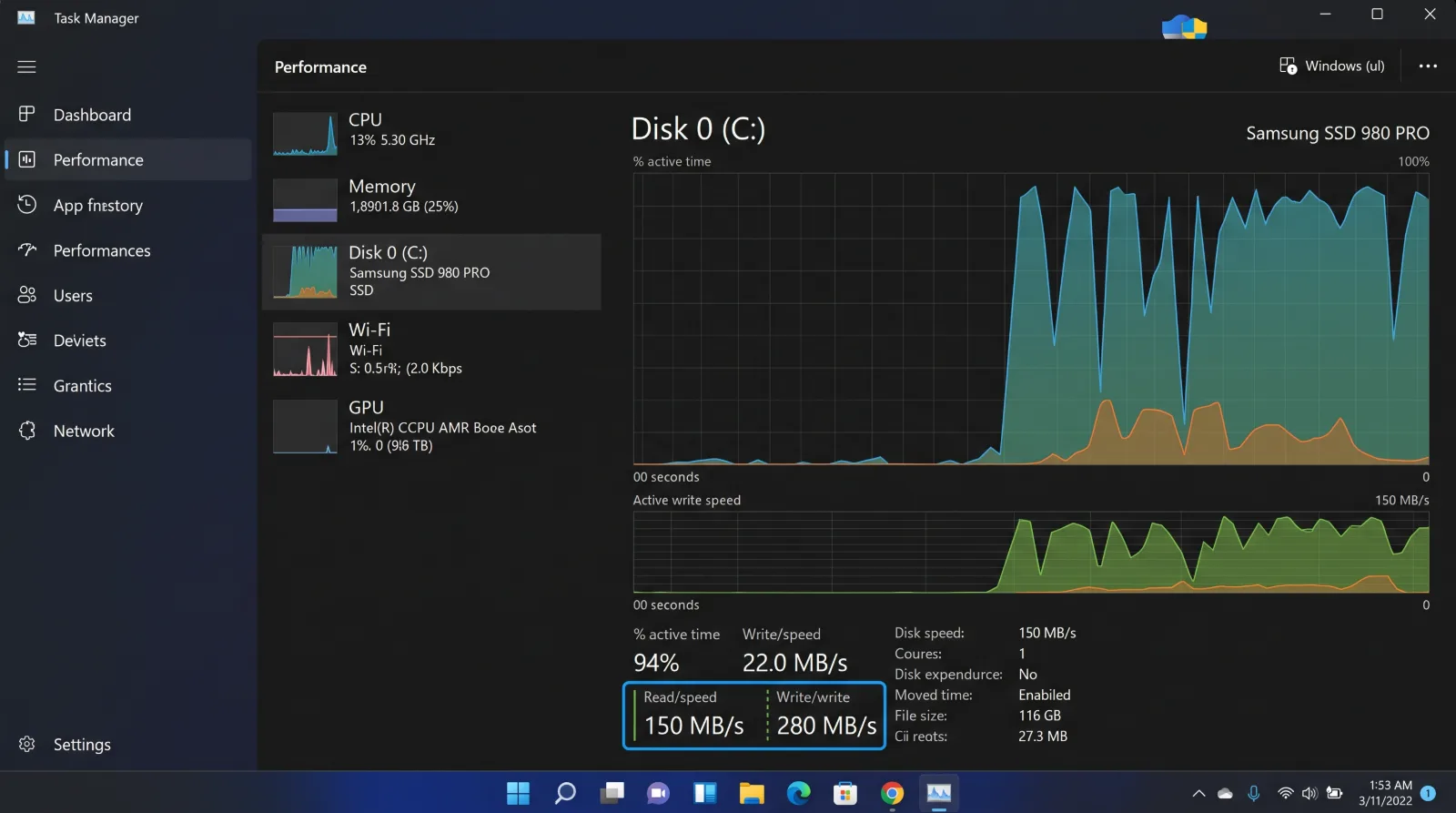
Open Task Manager (Ctrl + Shift + Esc), click the Performance tab, and inspect your target SSD. If Active Time is pegged at 80% to 100%, your drive is unpacking files.
Fixing a Genuinely Frozen Installation
If both network and disk activity remain at zero for more than fifteen minutes:
- Pause the download within the Steam Download Manager.
- Open Task Manager and terminate
Steam.exe. - Navigate to
C:\Program Files (x86)\Steam\steamapps\downloadingand inspect the folder for file locks. - Relaunch Steam as administrator to resume the allocation process cleanly.
Ensure your storage drive remains in top condition