GTA IV Fusion Fix Guide: How to Fix Stuttering, Shaders & 60 FPS on PC
Playing GTA IV on modern Windows hardware? Here is how to install Fusion Fix to eliminate frame-rate stuttering, fix broken steering physics, restore console-exclusive shaders, and unlock 60 FPS stability.
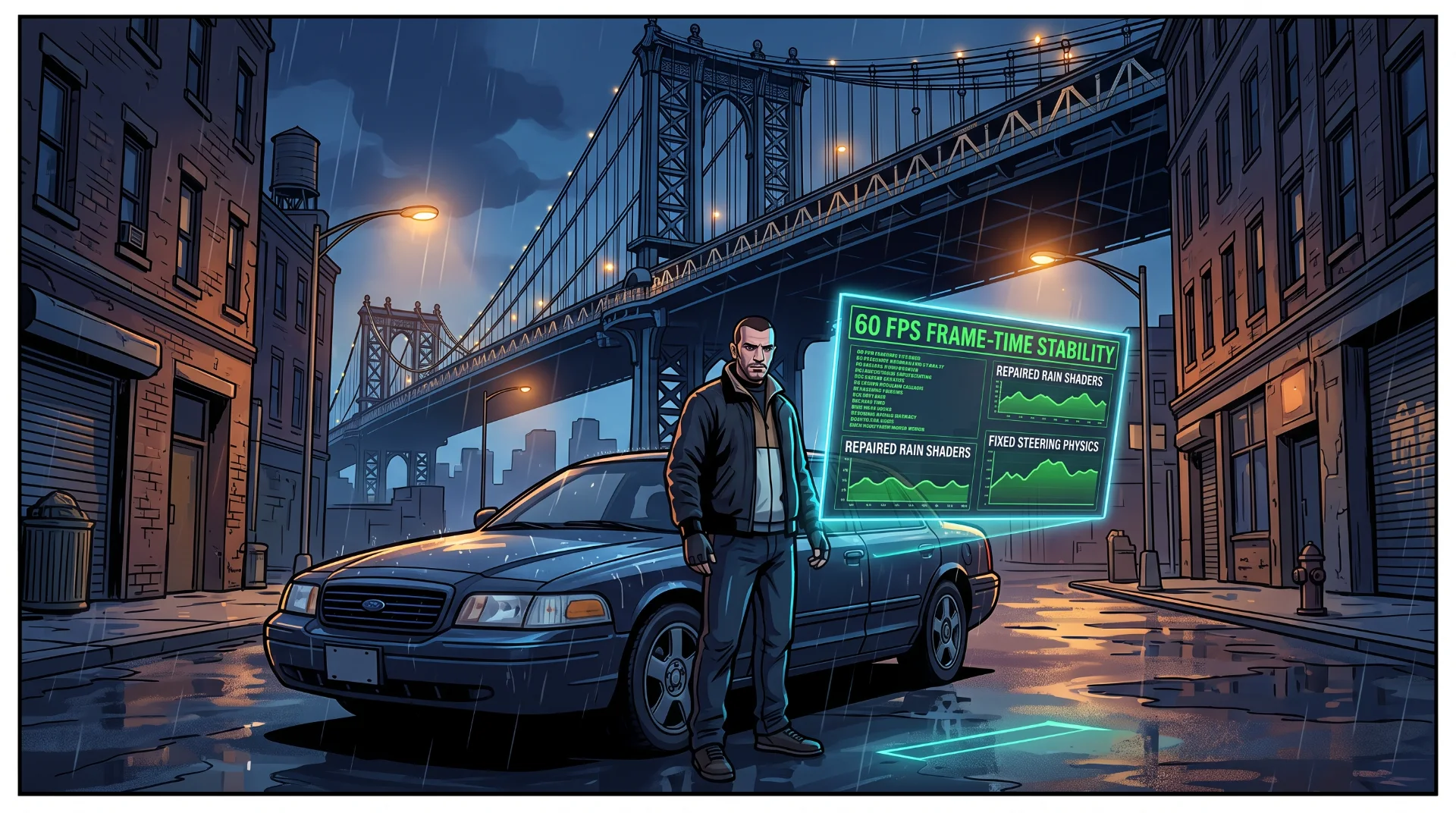
Restoring Liberty: The Definitive GTA IV Fusion Fix Installation Guide
Released on PC in December 2008, Grand Theft Auto IV remains one of the most notoriously unoptimized PC ports in gaming history. Despite playing on modern processors and graphics cards capable of powering 4K ray tracing, running vanilla GTA IV straight from Steam or the Rockstar Games Launcher frequently results in severe frame-rate stuttering, broken rain textures, hyperactive steering physics, and game-breaking final mission bugs.
The community modding scene stepped in to preserve the title through Fusion Fix, an essential open-source modification developed by dedicated engineers to repair the underlying RAGE engine without altering the artistic vision of Liberty City.
Below is the definitive installation guide to deploying Fusion Fix, resolving high-refresh-rate physics bugs, and experiencing Niko Bellic’s journey as originally intended.
The Modern PC Dilemma: Why Vanilla GTA IV Struggles
When GTA IV was compiled for PC, modern multi-threaded processors and ultra-fast graphics pipelines did not exist:
- The High Frame-Rate Physics Bug: The game’s vehicle suspension and physics calculations are hardcoded to 30 FPS. Playing at 60 FPS or higher causes vehicle steering to feel excessively stiff, while the final helicopter climb in the revenge ending becomes mathematically impossible to complete due to rapid button-press tick miscalculations.
- Broken Console Shaders: The PC port accidentally dropped custom depth-of-field shaders, dynamic soft shadows, and reflective water light refraction effects that gave the PlayStation 3 and Xbox 360 versions their cinematic, grimy grit.
- Modern Operating System Memory Limits: Modern versions of Windows misinterpret the game’s old 32-bit video memory allocation, restricting modern graphics cards to low memory pools and causing aggressive texture pop-in.
What Fusion Fix Actually Repairs
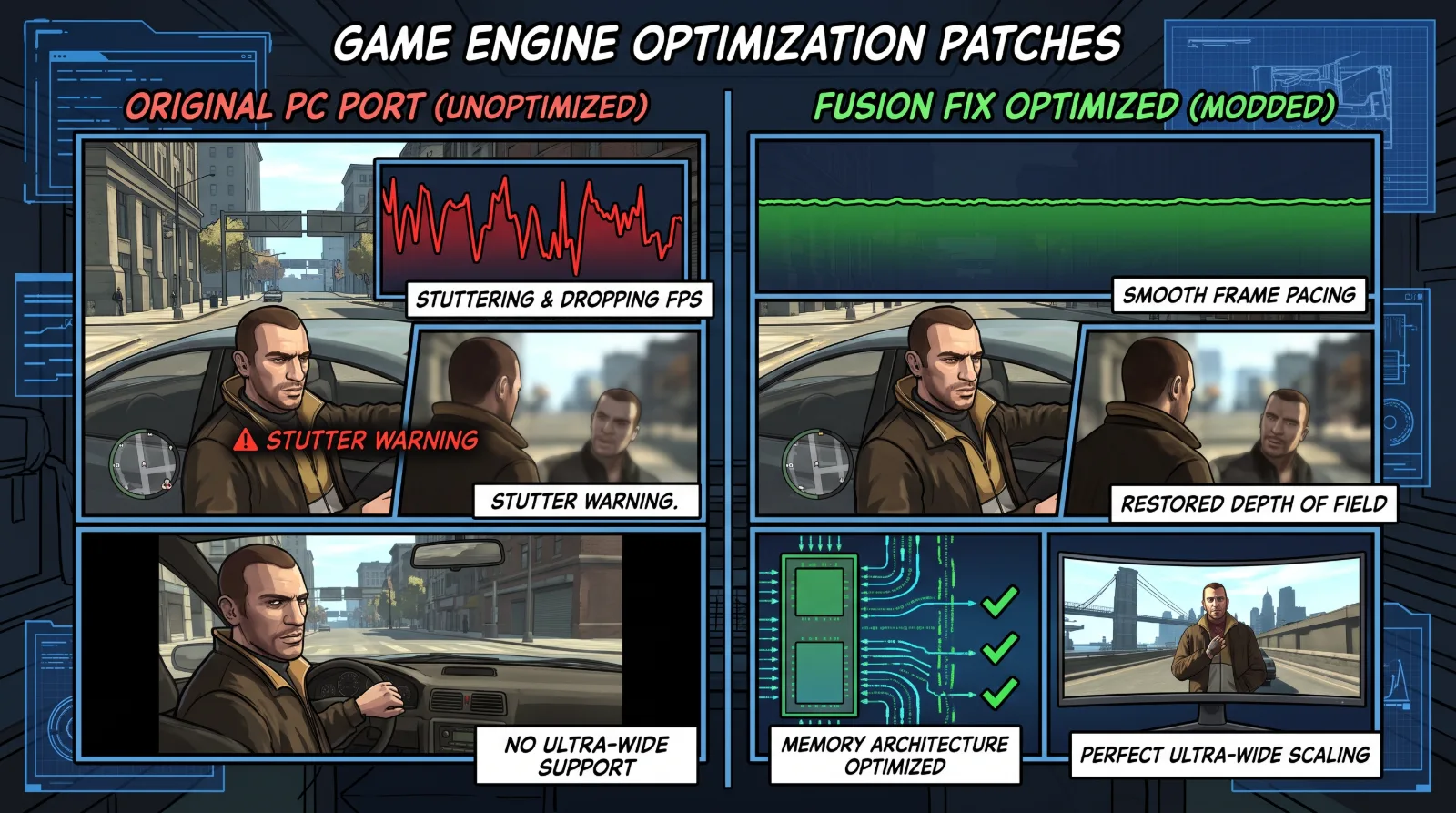
Fusion Fix operates as an all-in-one low-level community patch:
Fusion Fix Architecture Breakdown:
[DirectInput Raw Mouse Control] + [60+ FPS Physics Decoupling] + [Restored Console Visual Shaders]
- Frame-Rate Decoupling: Smoothly separates physics loops from visual rendering, allowing buttery-smooth 60, 120, or 144 FPS gameplay without breaking motorcycle handling or the final mission helicopter climb.
- Restored Visual Atmosphere: Completely restores the original soft shadow filters, dynamic rain droplet refraction, and accurate motion blur curves.
- Modern Resolution and Ultrawide Support: Fixes distorted aspect ratios on 21:9 and 32:9 ultrawide monitors, ensuring character models and radar HUDs do not stretch unnaturally.
Step-by-Step Installation Instructions
Deploying Fusion Fix takes under three minutes and requires zero complex file extraction:
Step 1 Clean Install:
Ensure you possess a clean, unmodified installation of Grand Theft Auto IV: Complete Edition on Steam or the Rockstar Games Launcher.
Step 2 Download the Release Package:
Navigate to the verified open-source GTAIV-FusionFix GitHub Repository and download the latest release ZIP archive.
Step 3 Drag and Drop Directory Integration:
Open your root GTA IV game directory (e.g., Steam/steamapps/common/Grand Theft Auto IV/GTAIV). Extract the contents of the ZIP archive directly into this root folder.
Step 4 Verify and Launch:
Launch the game normally. Fusion Fix injects its fixes directly through a custom .asi loader during startup, granting immediate access to advanced display settings in your options menu.