How to Fix "An Error Was Encountered While Processing Your Request" on Steam
Stuck on a blank screen with "An error was encountered while processing your request" on Steam? Here is the step-by-step fix to clear corrupted browser cache, renew session cookies, and bypass server throttling.
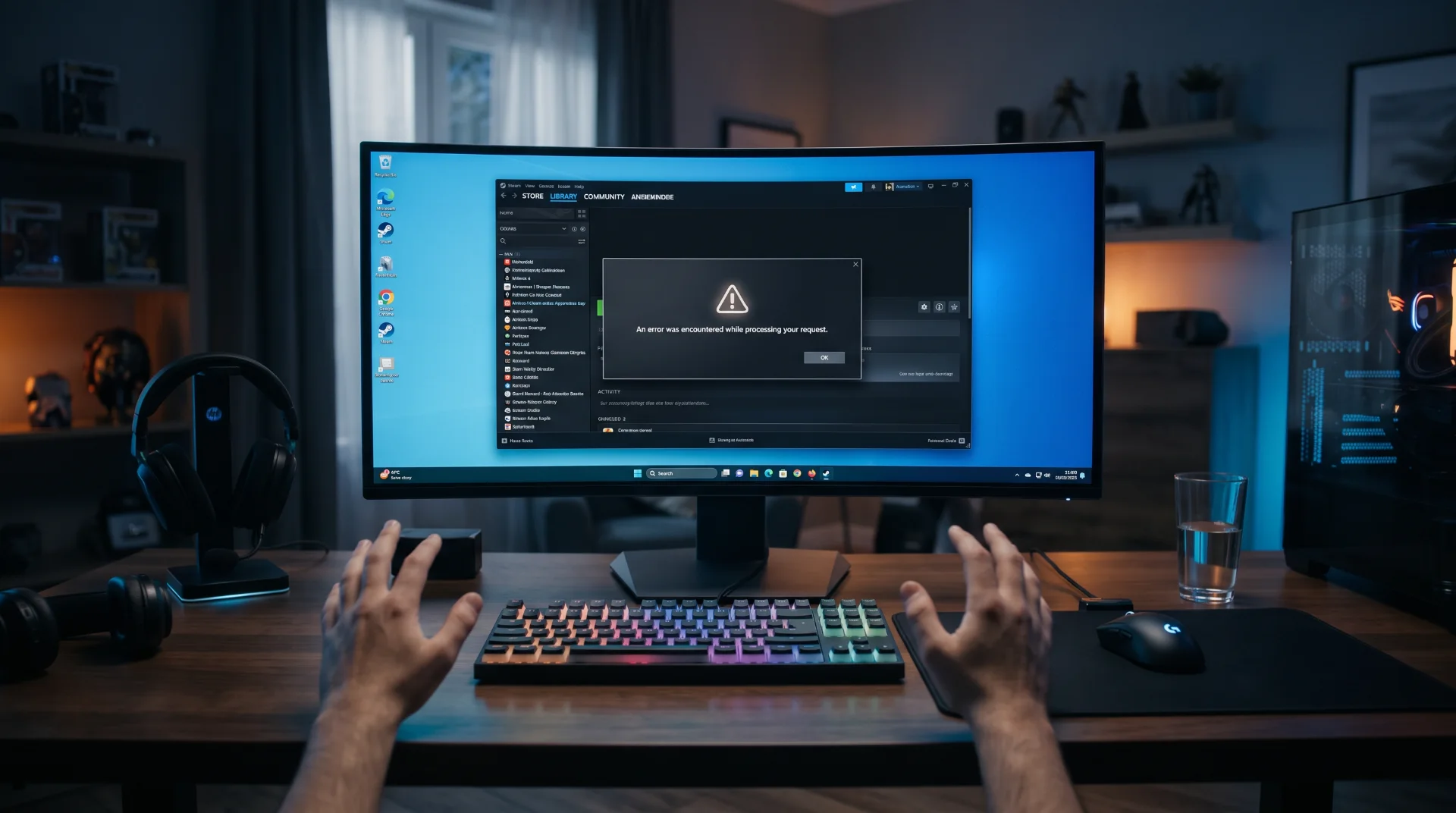
Session Lock: Resolving Steam’s Generic Processing Request Error
Few error messages within the Valve ecosystem are as notoriously vague as "An error was encountered while processing your request." Whether you are attempting to inspect your Steam Inventory, open community trading forums, or complete a checkout in the seasonal sale, this generic interruption halts all navigation.
Recent telemetry spikes across worldwide search data reveal that thousands of PC gamers encounter this barrier simultaneously.
While community chatter often assumes a full backend infrastructure crash, the issue is frequently tied to corrupted local session tokens within Steam’s integrated Chromium Embedded Framework (CEF) browser.
Below is an operational guide to resolving browser token corruption, renewing expired session cookies, and verifying Valve server responsiveness.
Why Does This Error Trigger?
The integrated Steam desktop client is essentially a customized web browser running on Chromium architecture. When web requests break, the client fails to render store pages:
- Stale Session Tokens: Leaving the Steam client running continuously for weeks leads to accumulated session tokens that fail server-side cryptographic handshakes.
- IP Throttling from Rapid Requests: Refreshing market inventories or community trading tabs too rapidly causes Valve's Cloudflare network defenses to temporarily blacklist your IP address for 15 to 30 minutes.
- Corrupted Web Storage Bloat: Stored cookies and cached style sheets can conflict with recent server updates pushed to the Steam storefront.
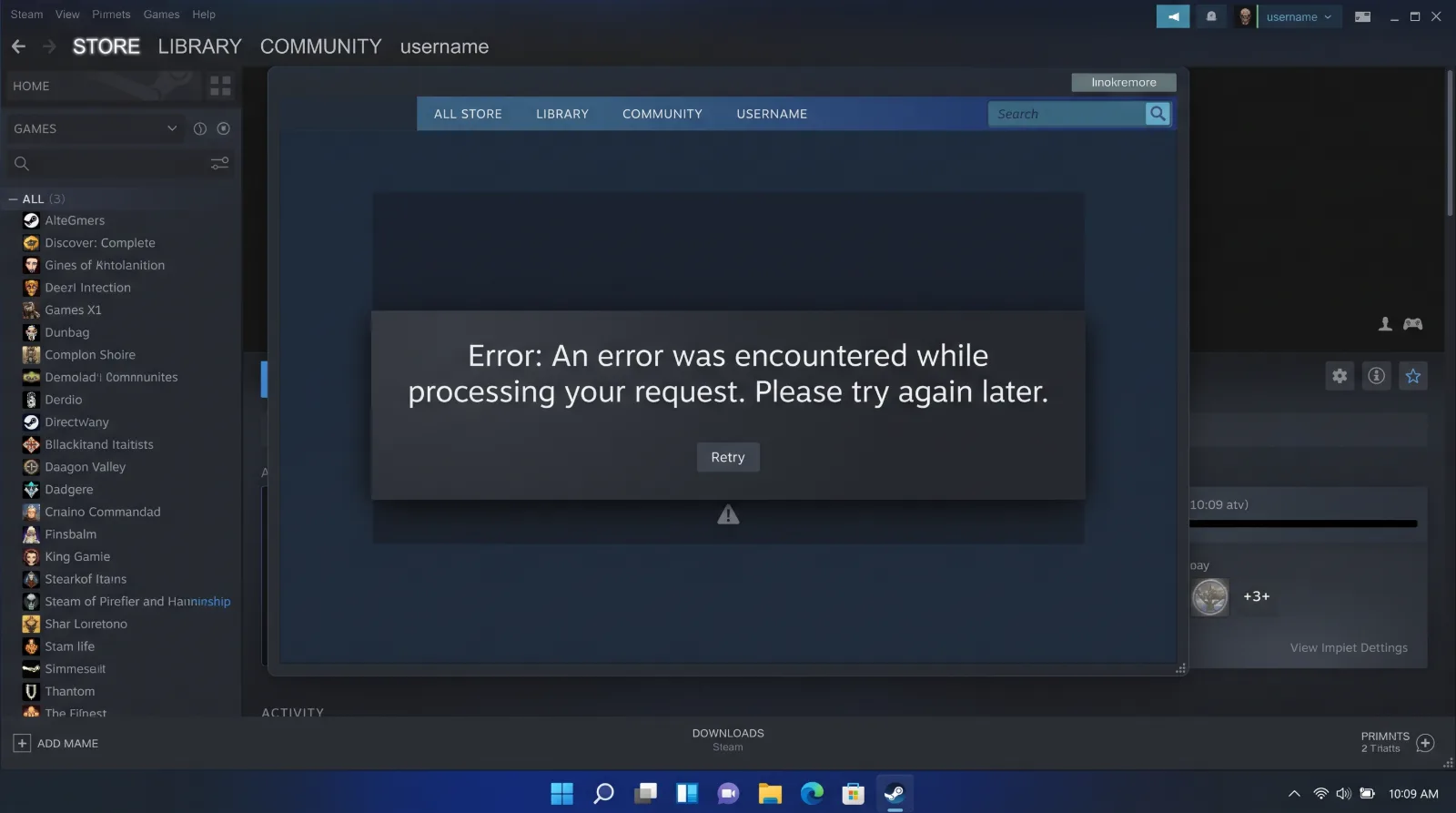
Step-by-Step Fix: Purging Steam Web Browser Cache
Clearing the client's internal browser cache fixes over 80 percent of request processing failures:
Step 1 Open Settings:
Launch Steam, navigate to the top-left menu bar, and click on Steam > Settings.
Step 2 Locate the In-Game Tab:
Select the In-Game navigation tab from the left sidebar menu.
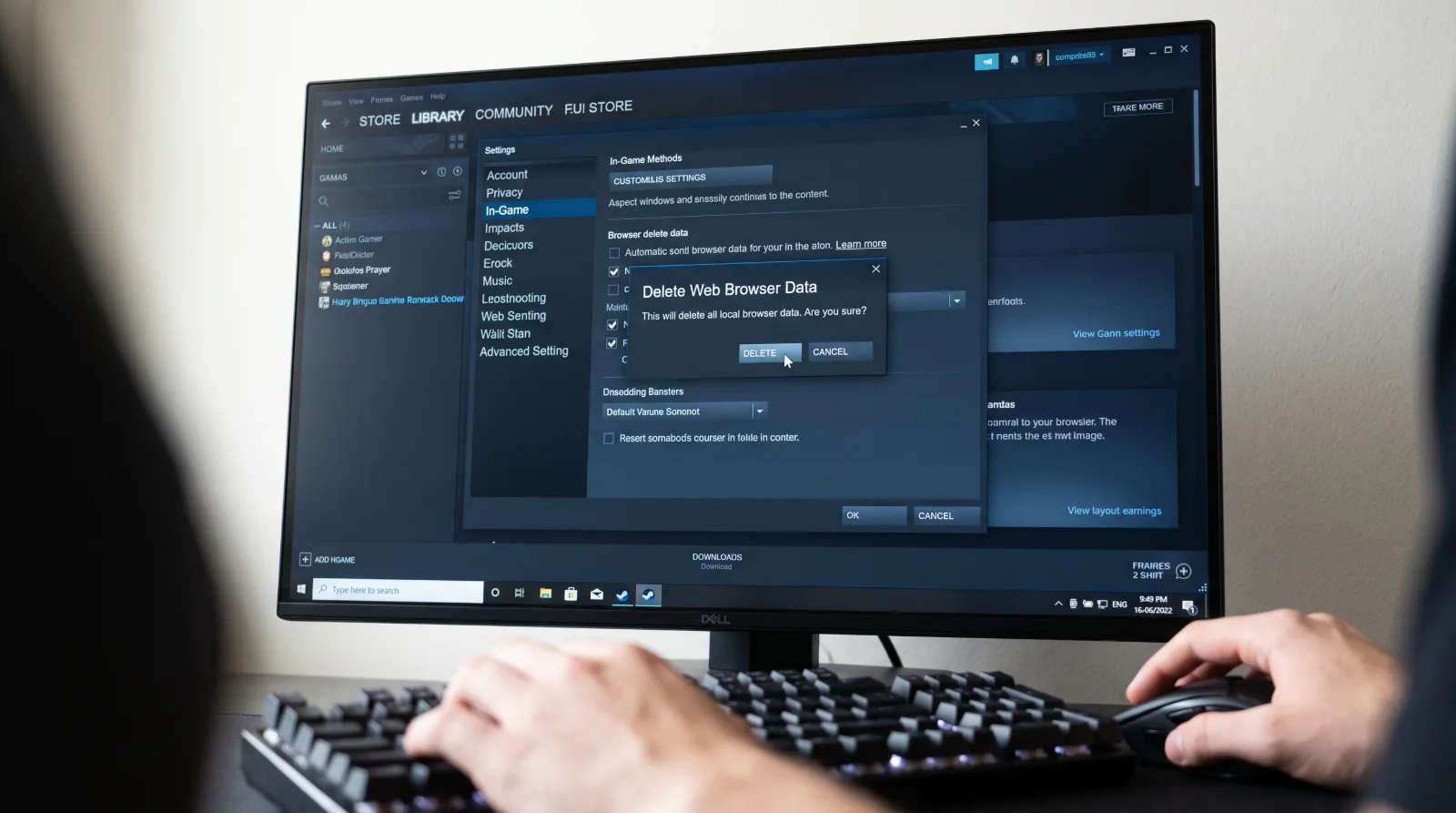
Step 3 Delete Web Browser Data:
Scroll to the option labeled Delete Web Browser Data and click the corresponding Delete button. Confirm the action when prompted to flush accumulated cookies, temporary cache files, and orphaned session scripts.
Step 4 Restart the Client:
Exit Steam completely through Task Manager to verify that background processes like steamwebhelper.exe have ceased, then relaunch the application as administrator.
Alternative Solution: Renewing Network DNS Protocols
If the error persists across both the desktop client and external web browsers:
Flush DNS Resolver Cache: Open Command Prompt as Administrator on Windows and execute ipconfig /flushdns. This purges cached domain records pointing to retired Valve edge servers.
Switch to Public Resolvers: Configure your network adapter to use Google DNS (8.8.8.8 and 8.8.4.4) or Cloudflare DNS (1.1.1.1) to bypass regional routing bottlenecks.
Learn how to keep your installation clutter-free by reading our guide and news section.