How to Fix Steam Cloud "Unable to Sync" & Out of Date Errors
Losing game progress to a Steam Cloud sync conflict? Here is how to fix "Unable to Sync" and "Out of Date" errors, recover lost save files from Remote Storage, and prevent data loss.
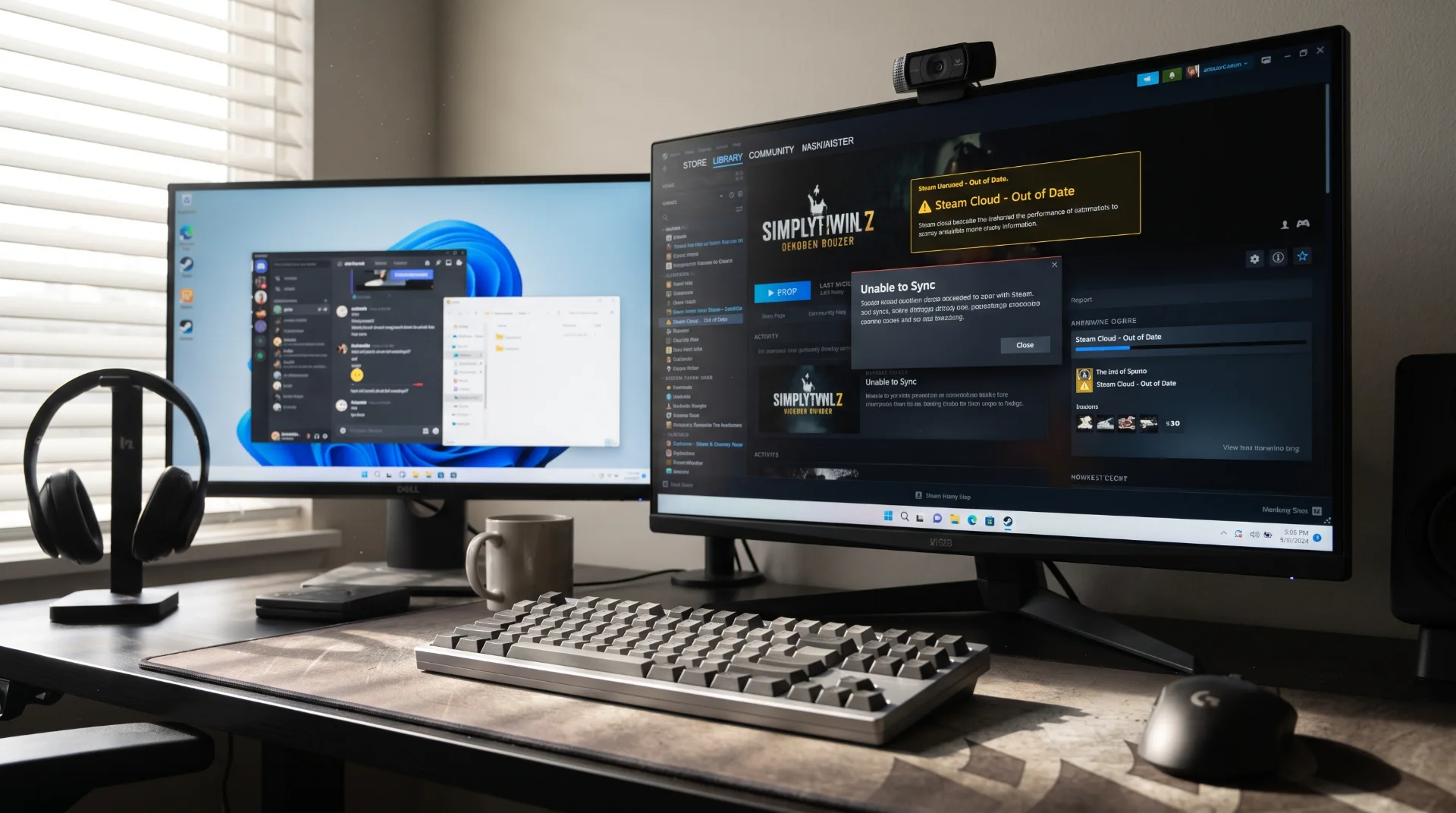
Safeguarding Progress: Resolving Steam Cloud "Unable to Sync" Errors
Modern PC gaming relies heavily on seamless cloud synchronization. Whether you are alternating between a desktop gaming rig and a portable Steam Deck on the go, expecting your campaign progress to carry over instantly is standard practice.
However, encountering the warning "Steam Cloud - Unable to Sync" or an alarming "Out of Date" alert strikes immediate fear into players who dread losing dozens of hours of gameplay.
Search spikes across terms like cloud error unable to sync steam confirm that save-file desynchronization is an ongoing pain point.
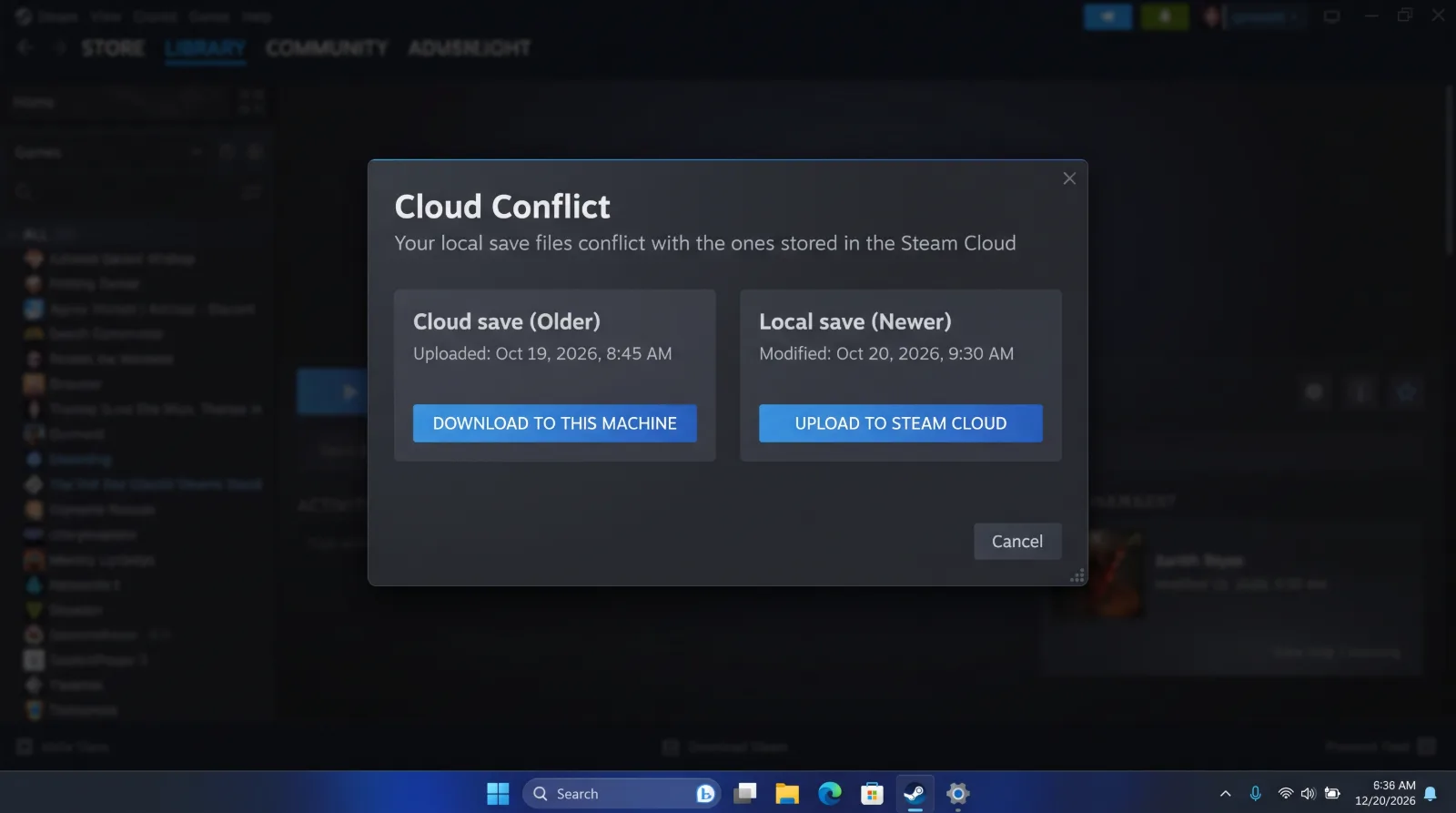
Below is an operational guide to resolving cloud save collisions, recovering uncorrupted files directly from Valve's servers, and stabilizing sync routines.
The Cause: Timestamp and Hash Collisions
Steam Cloud functions by comparing cryptographic hashes and modification timestamps between two locations: your local storage drive and Valve’s cloud database:
- Abrupt Game Shutdowns: Forcing a game to exit via Alt + F4 or experiencing a system crash prevents the Steam client from completing its post-session cloud upload.
- Concurrent Session Conflicts: If you launch a title on your primary PC while your Steam Deck is asleep with the same game suspended in memory, the server detects conflicting save states.
- Server Edge Latency: Transient network spikes between your ISP and Valve’s cloud storage clusters cause the client to timeout during pre-launch integrity checks.
Step-by-Step Fix: Resolving Cloud Save Conflicts
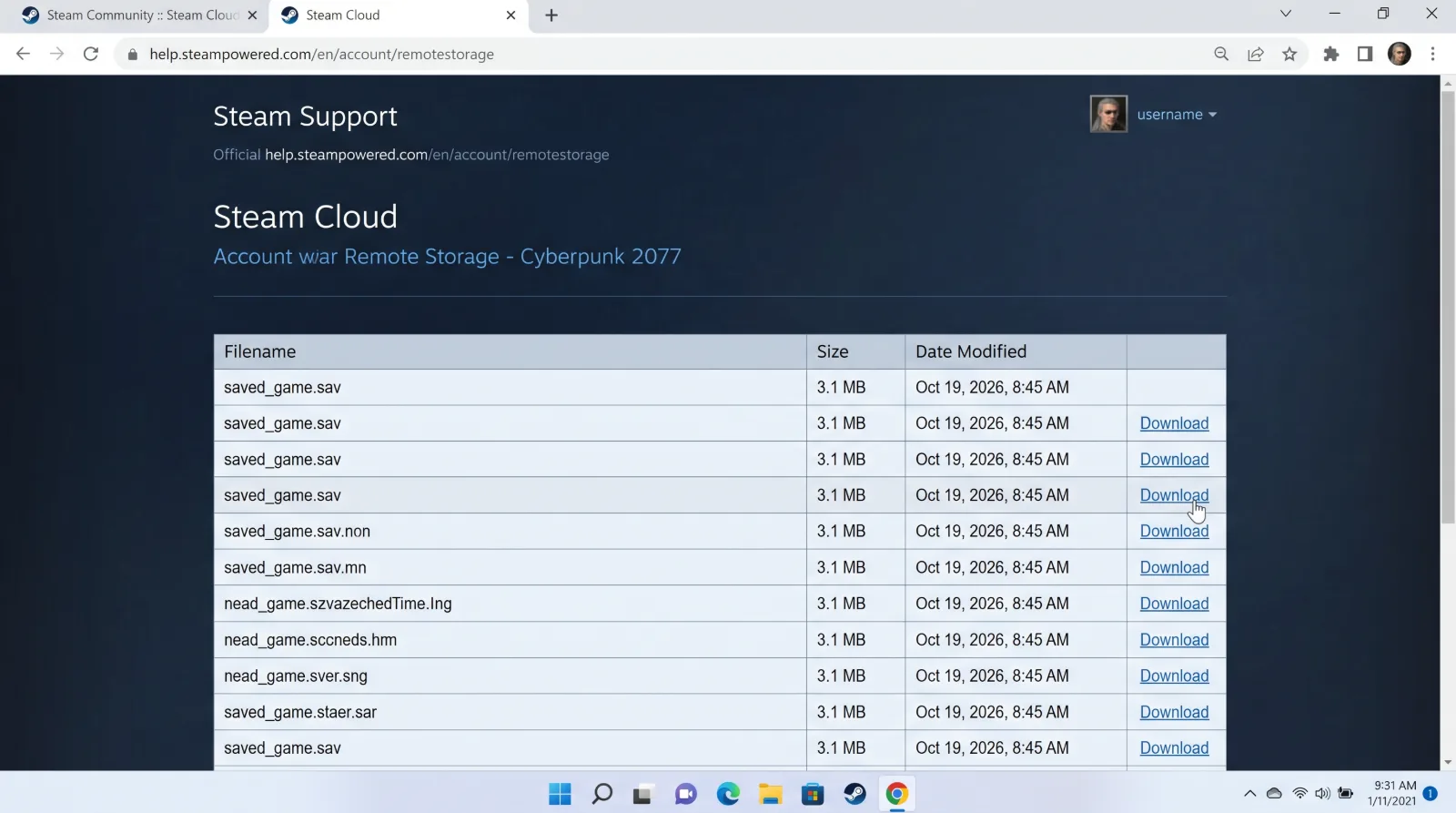
When Steam prompts you with a Cloud Conflict dialogue, proceed with extreme caution:
Step 1 Inspect the Timestamps:
Never click blindly. Read the exact timestamps displayed for both the Local Save and the Cloud Save.
Select Local Save if you just finished playing on that specific machine.
Select Cloud Save if you previously completed a session on a different device (such as your Steam Deck) and wish to import that progress.
Step 2 Force Re-Synchronization:
If the client displays "Unable to Sync" with a retry button:
- Open Steam > Settings > Cloud.
- Toggle the Enable Steam Cloud switch to Off.
- Wait ten seconds, toggle it back to On, and relaunch the game to force a clean server query.
Step 3 Manual Recovery via Steam Remote Storage:
If you fear a local save file has corrupted entirely:
- Open your web browser and navigate to the official Steam Cloud Remote Storage Page.
- Log in with your verified credentials.
- Locate your game from the directory list and click Show Files.
- Download your uncorrupted save file directly to your desktop, and manually copy it into your local game save directory.