How to Fix Steam Disk Write Error: Corrupted Drives, Permissions & Bad Sectors
Stuck with a Steam Disk Write Error mid-download? Here is how to remove read-only file locks, check your SSD for bad sectors, and repair your Steam library folders.
Storage Block: Overcoming the Steam Disk Write Error
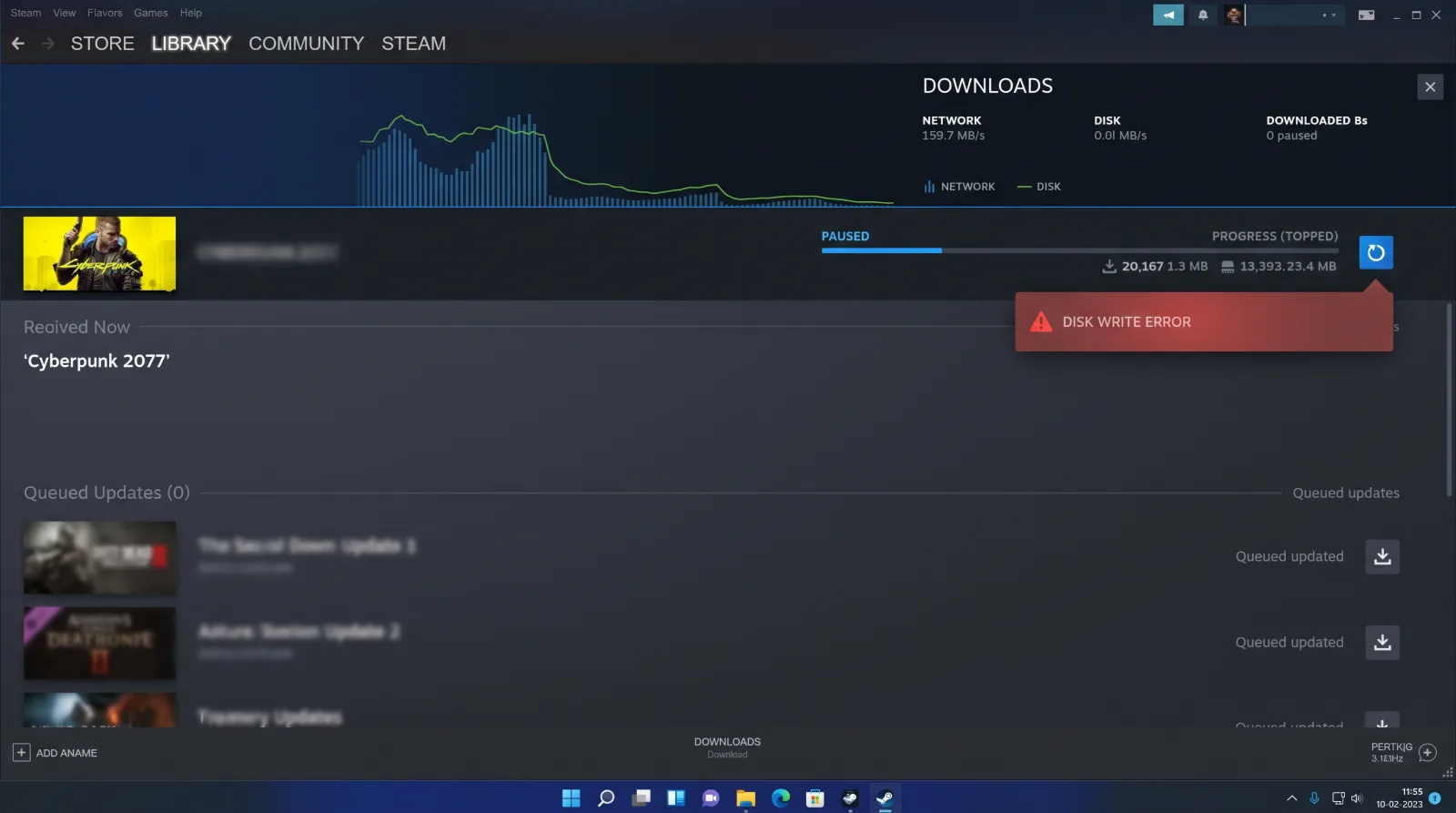
You purchase an exciting new title, clear space on your solid-state drive, and initiate the download, only for Steam to abruptly halt progress with a red notification: **"An error occurred while updating [Game Title] (Disk write error).
Search interest around steam disk write error demonstrates that drive permission lockouts and corrupted staging directories remain persistent headaches for PC gamers.
Below is an operational guide to diagnosing storage permission conflicts, clearing write-protected sector locks, and verifying storage health.
Why Does the Disk Write Error Occur?
A disk write error indicates that the Steam client cannot physically commit incoming downloaded data chunks to your storage drive:
- Read-Only Directory Locks: A recent Windows update or antivirus scan flagged your
steamappsdirectory as read-only, blocking write operations. - Corrupted 0-Byte Allocation Files: When an internet connection stutters during a download, Steam may generate a corrupted 0-byte file that blocks subsequent data streams.
- Bad Physical Drive Sectors: Hardware degradation on older solid-state drives or mechanical hard drives prevents data from writing reliably.
Step-by-Step Fix: Removing Read-Only Attributes
Step 1 Locate Your Steam Library Folder:
Navigate to your primary storage drive: C:\Program Files (x86)\Steam\steamapps\common.
Step 2 Clear Read-Only Permissions:
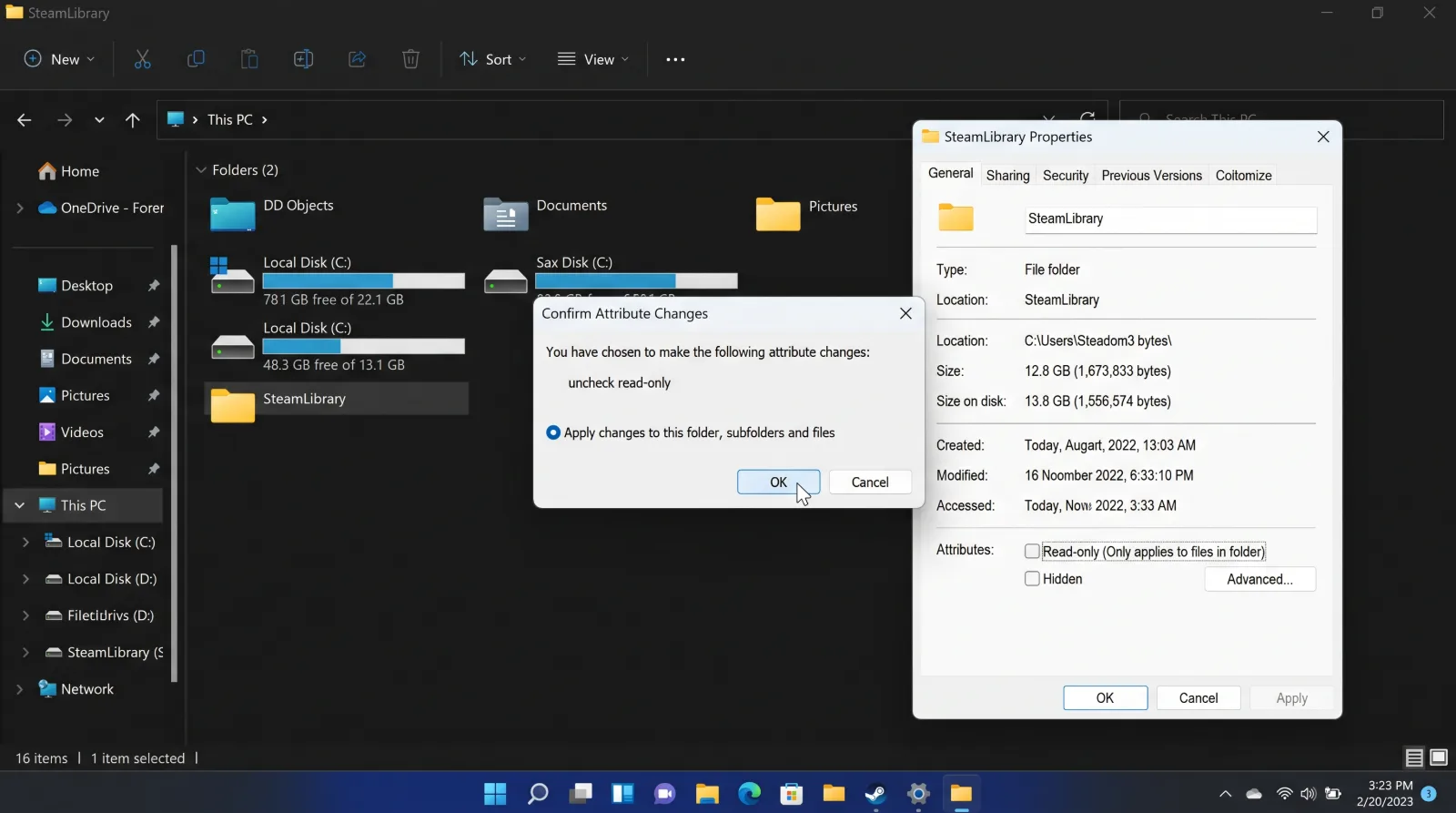
Right-click on the specific game folder (or the parent common folder) and select Properties.
In the General tab, locate the Read-only checkbox at the bottom.
If it is checked, uncheck it completely. Click Apply, choose Apply changes to this folder, subfolders, and files, and click OK.
Step 3 Delete the 0-Byte Corrupted File:
Navigate to C:\Program Files (x86)\Steam\steamapps\downloading.
If you locate an unreadable file with a size of 0 KB matching your game ID, delete it immediately.
Repairing Steam Library Folders Internally
Steam features a built-in library repair tool:
- Open Steam > Settings > Storage.
- Select the storage drive exhibiting the error.
- Click the three horizontal dots on the right side and select Repair Library.
- Grant Windows administrative approval to let Steam verify and re-index storage permissions across all installed directories.
Keep your high-speed drives running efficiently!