How to Fix Steam Error 0x11c7: Memory Exceptions & Launch Crashes
Experiencing sudden client crashes labeled with Error 0x11c7 on Steam? Here is how to resolve memory address violations, repair corrupted Visual C++ runtimes, and stabilize your client
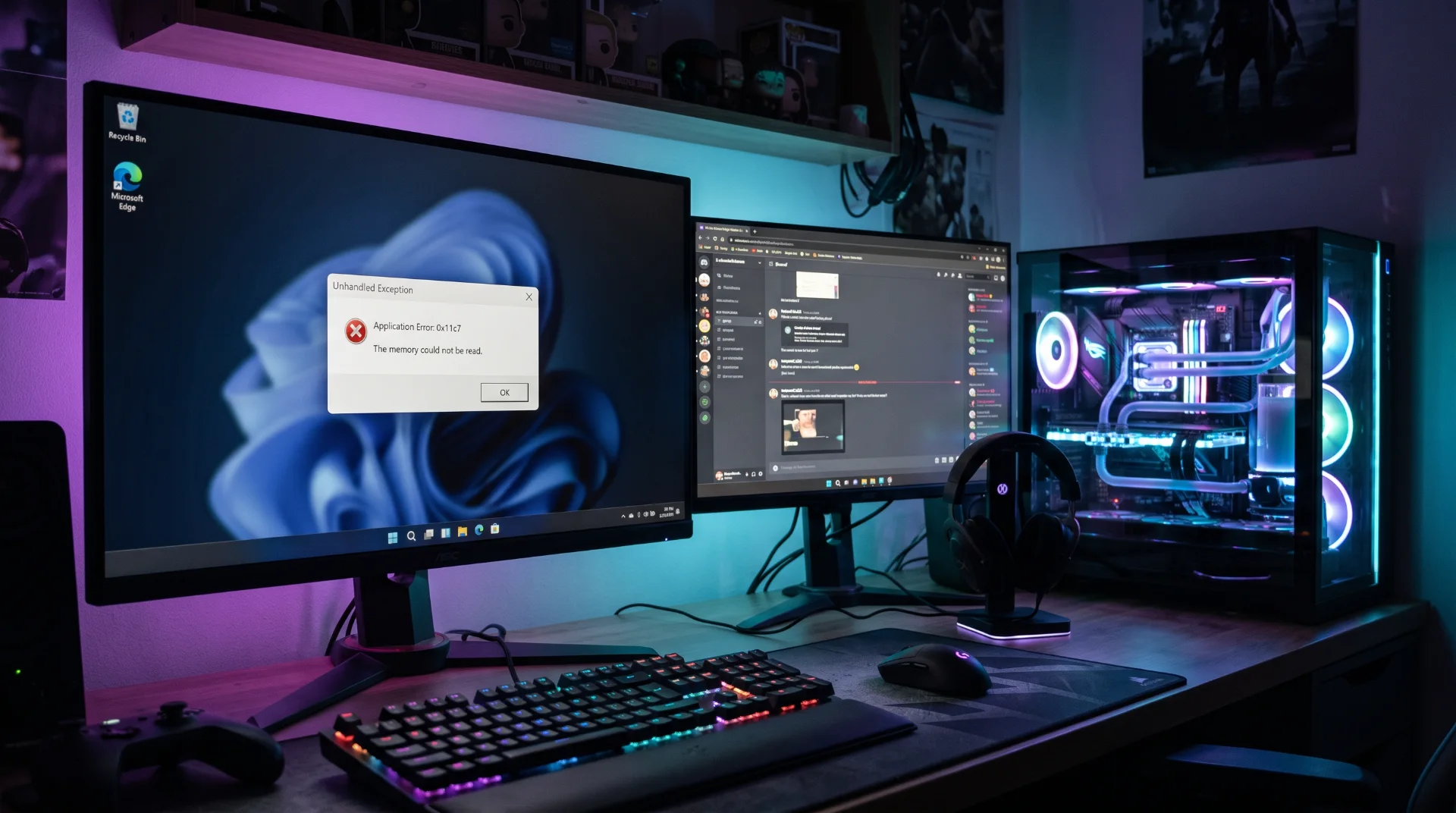
Code Exception: Demystifying and Fixing Steam Error 0x11c7
Hexadecimal error codes in Windows are notoriously difficult to decipher without technical debugging software. Among the rising errors causing unexpected crashes during game initialization, Steam Error 0x11c7 represents a critical application memory access violation.
Search interest across 0x11c7 steam error has climbed as PC gamers find their games abruptly closing to the desktop without detailed explanation.
Below is an engineering breakdown of what Error 0x11c7 signifies and the verified steps required to repair damaged system runtimes.
What Does Error 0x11c7 Mean?
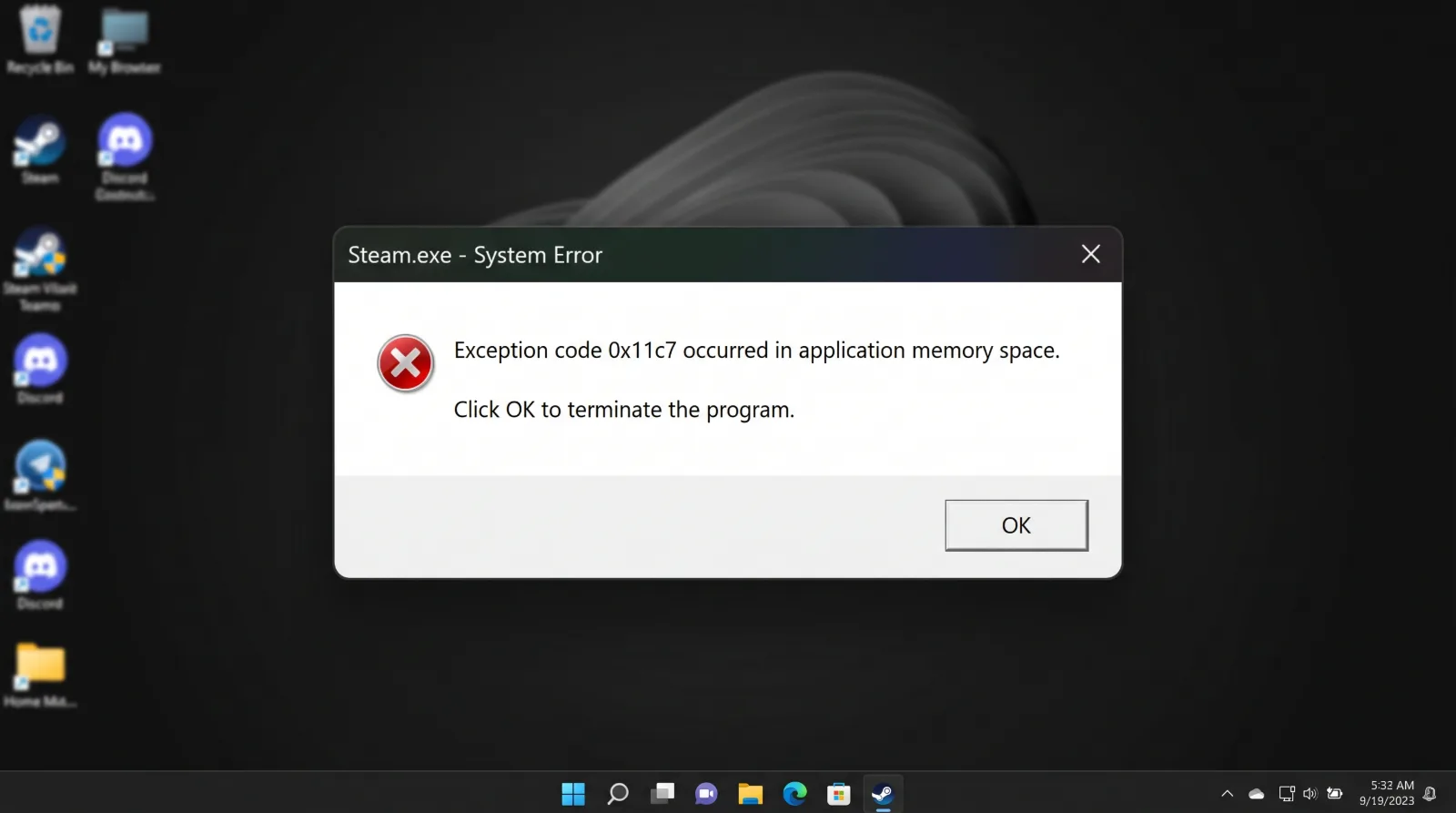
In software architecture, 0x11c7 is an unhandled memory pointer exception:
- Dynamic Link Library (DLL) Corruption: The game client attempts to call a function from an external shared library (such as DirectX or Microsoft Visual C++) that is missing or corrupted.
- Antivirus Memory Sandboxing: Overprotective security software misinterprets game memory hooks as malicious injection, abruptly terminating the process thread.
- Faulty System Memory Address: Microscopic data corruption within temporary RAM addresses causes the application to crash when referencing asset registries.
Step-by-Step Fix: Repairing Visual C++ Redistributable Packages
Because Steam games rely on shared C++ runtimes, repairing these packages resolves the underlying exception:
Step 1 Open Installed Apps in Windows:
Open Windows Settings > Apps > Installed apps.
Step 2 Locate Visual C++ Redistributables:
Scroll to the entries labeled Microsoft Visual C++ 2015-2022 Redistributable (x86) and (x64).
Step 3 Execute Repair:
Click the three dots beside each package, select Modify, and choose Repair. Allow Windows to complete the integrity check.
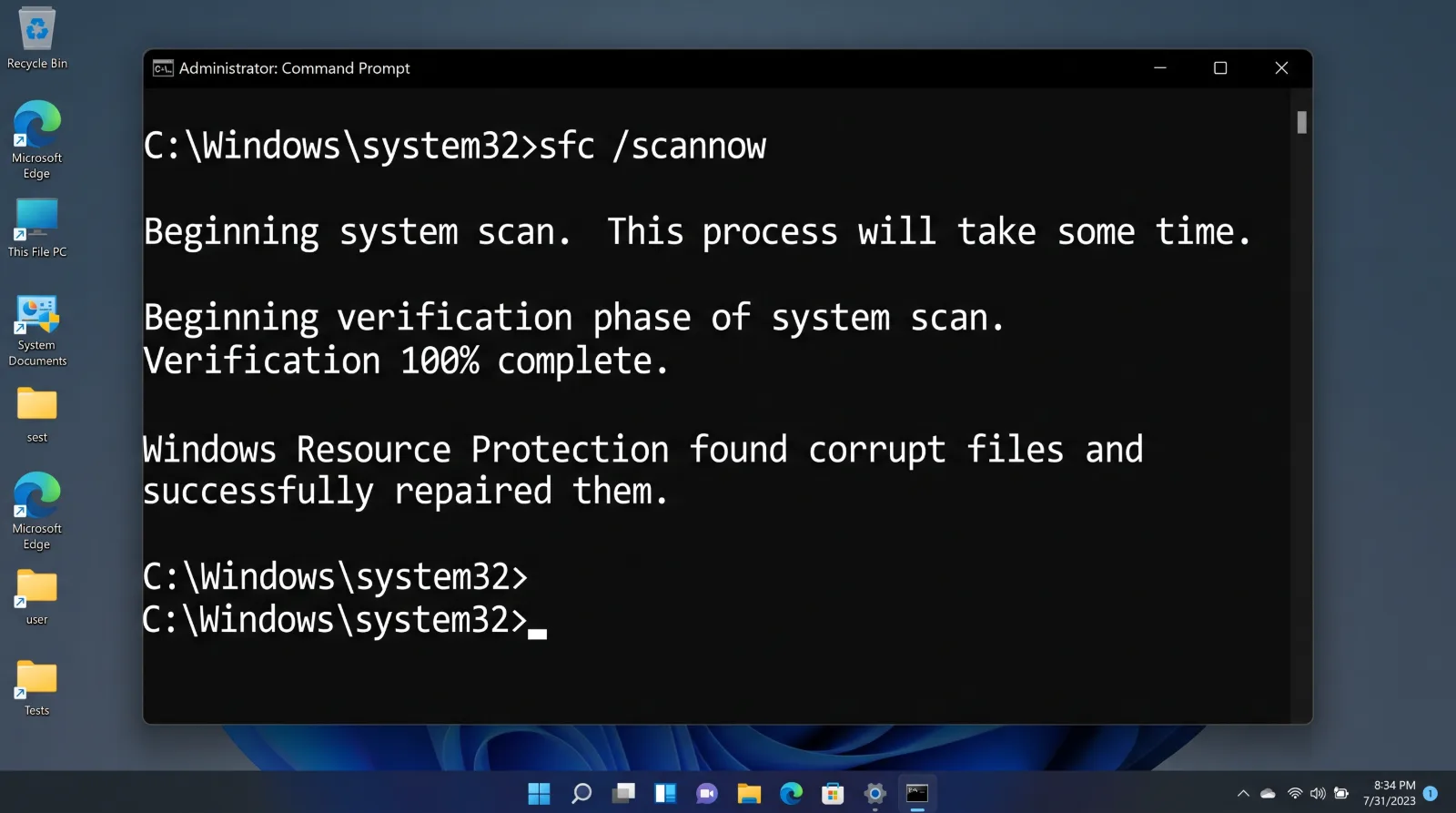
Step 4 Run System File Checker:
- Open Command Prompt as Administrator.
- Execute
sfc /scannow. - Windows will scan protected system files, automatically replacing corrupted DLL components that trigger memory violations.
Clear Conflicting Background Overlays
Third-party software hooks often trigger memory exceptions:
Disable Discord Overlay: Open Discord Settings > Game Overlay and toggle it off.
Disable Third-Party Hooking Utilities: Temporarily shut down monitoring tools like RivaTuner Statistics Server (RTSS) or proprietary GPU overclocking software to verify stability.
Maintain optimal system storage performance!