How to Fix Steam Error Code 10: Service Initialization & Permission Errors
Blocked by Steam Error Code 10 upon launching the client? Here is how to fix Steam Service initialization failures, repair Windows service permissions, and bypass corrupted administrative registries.
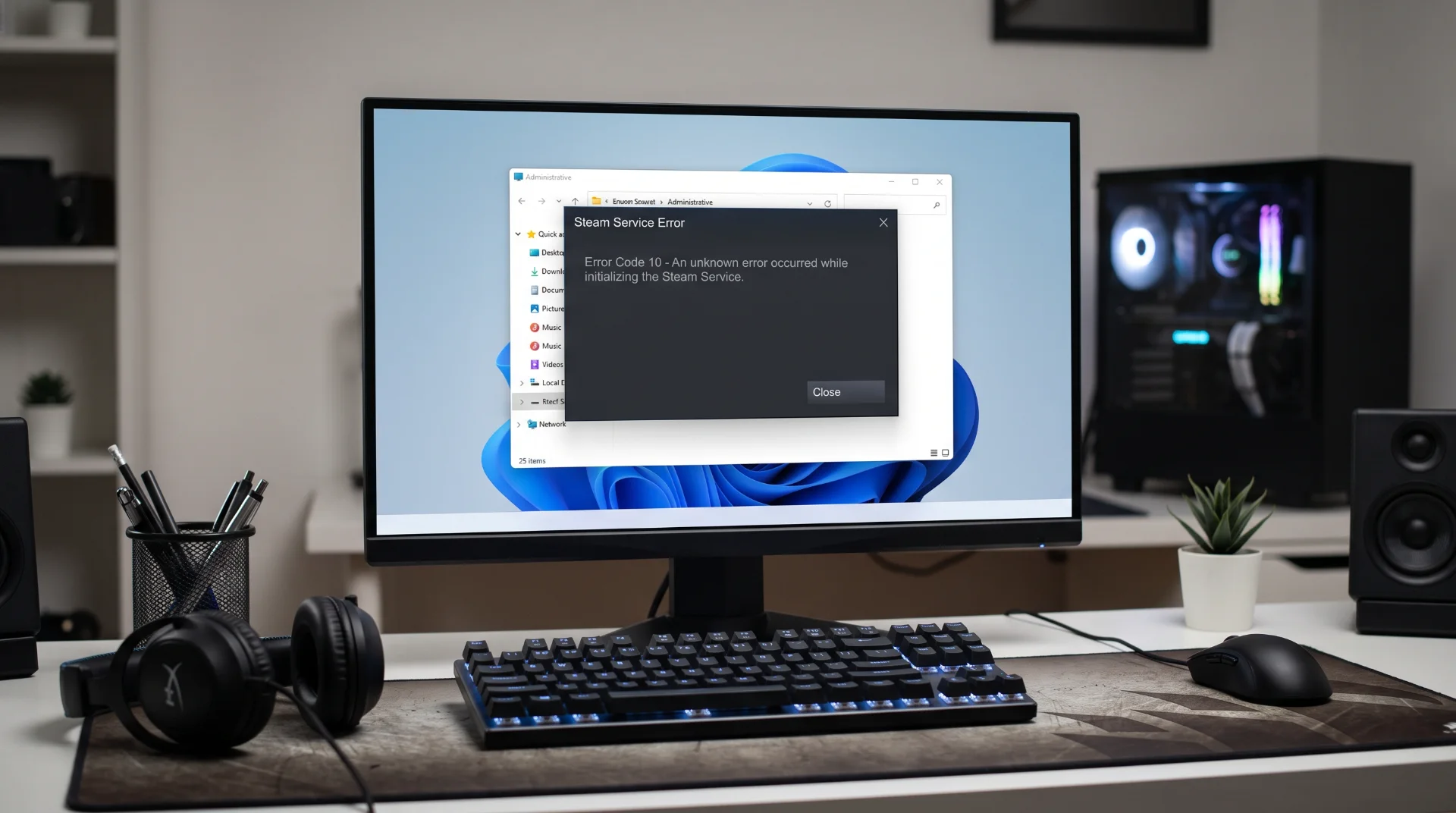
Service Failure: Overcoming Steam Error Code 10 on Windows
Encountering a numerical error code during client startup indicates a deep conflict between the Steam application and core Windows operating system services. Among these, Steam Error Code 10 is particularly disruptive, halting client initialization before the primary user interface ever appears on screen.
Recent diagnostic spikes around steam error code 10 show that this problem frequently flares up following major Windows updates or aggressive third-party security scans.
Below is an engineering walkthrough to diagnose Steam Service initialization failures, re-register administrative binaries, and resolve Error Code 10 permanently.
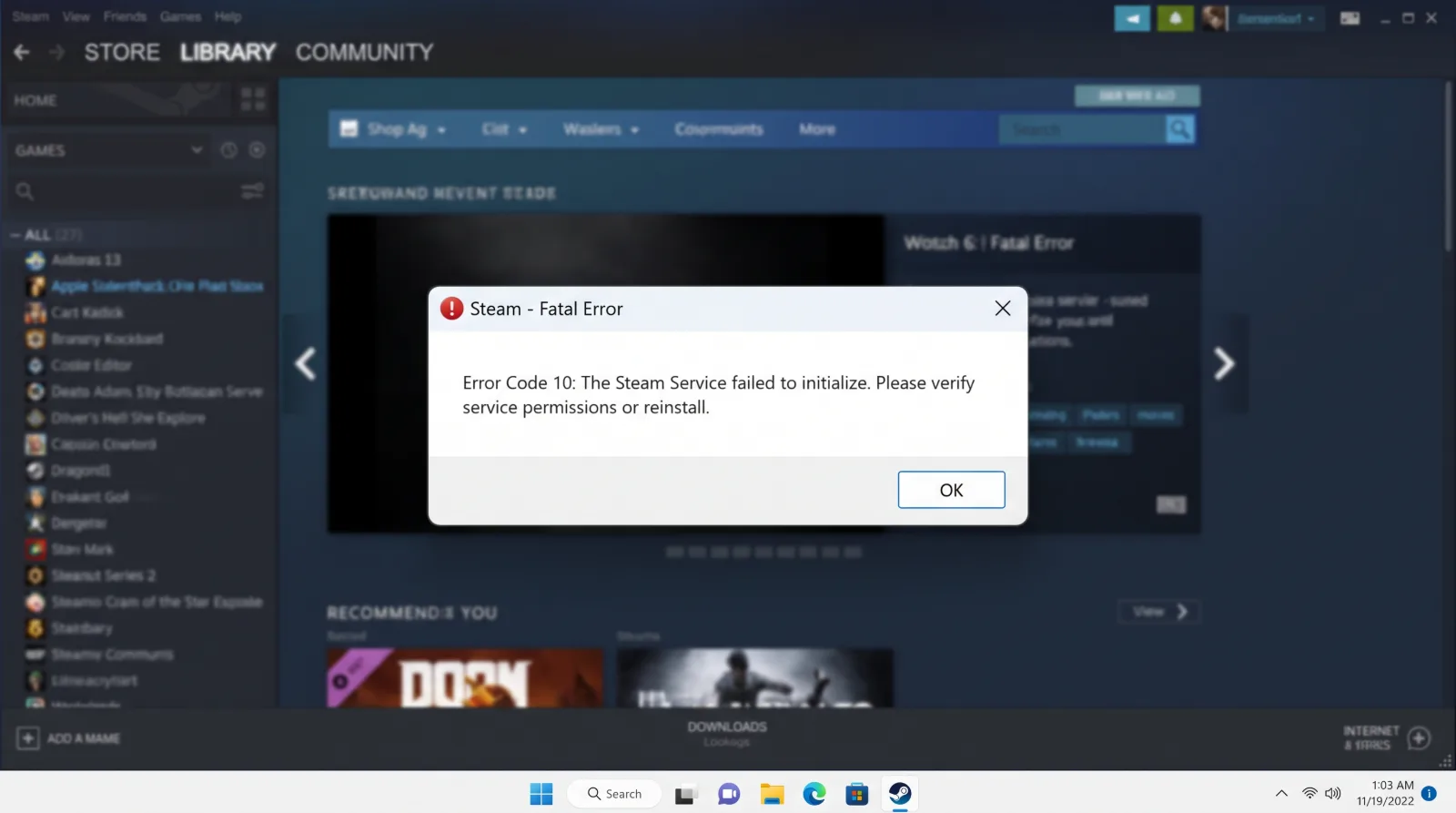
What Causes Steam Error Code 10?
The Steam client relies on a low-level background service named Steam Client Service (Steamservice.exe). This service manages driver-level interactions, anticheat handshakes, and installation directory permissions:
- Disabled Background Service: System optimization utilities or clean-up software can accidentally disable the Steam Client Service startup configuration.
- Administrative Privilege Revocation: If the Windows User Account Control (UAC) environment denies administrative execution privileges to the service, Error Code 10 triggers instantly.
- Corrupted Service Binaries: Sudden power losses or incomplete client updates can corrupt the executable files residing inside
C:\Program Files (x86)\Common Files\Steam.
Step-by-Step Fix: Reconfiguring the Steam Client Service
To re-enable and repair the background service:
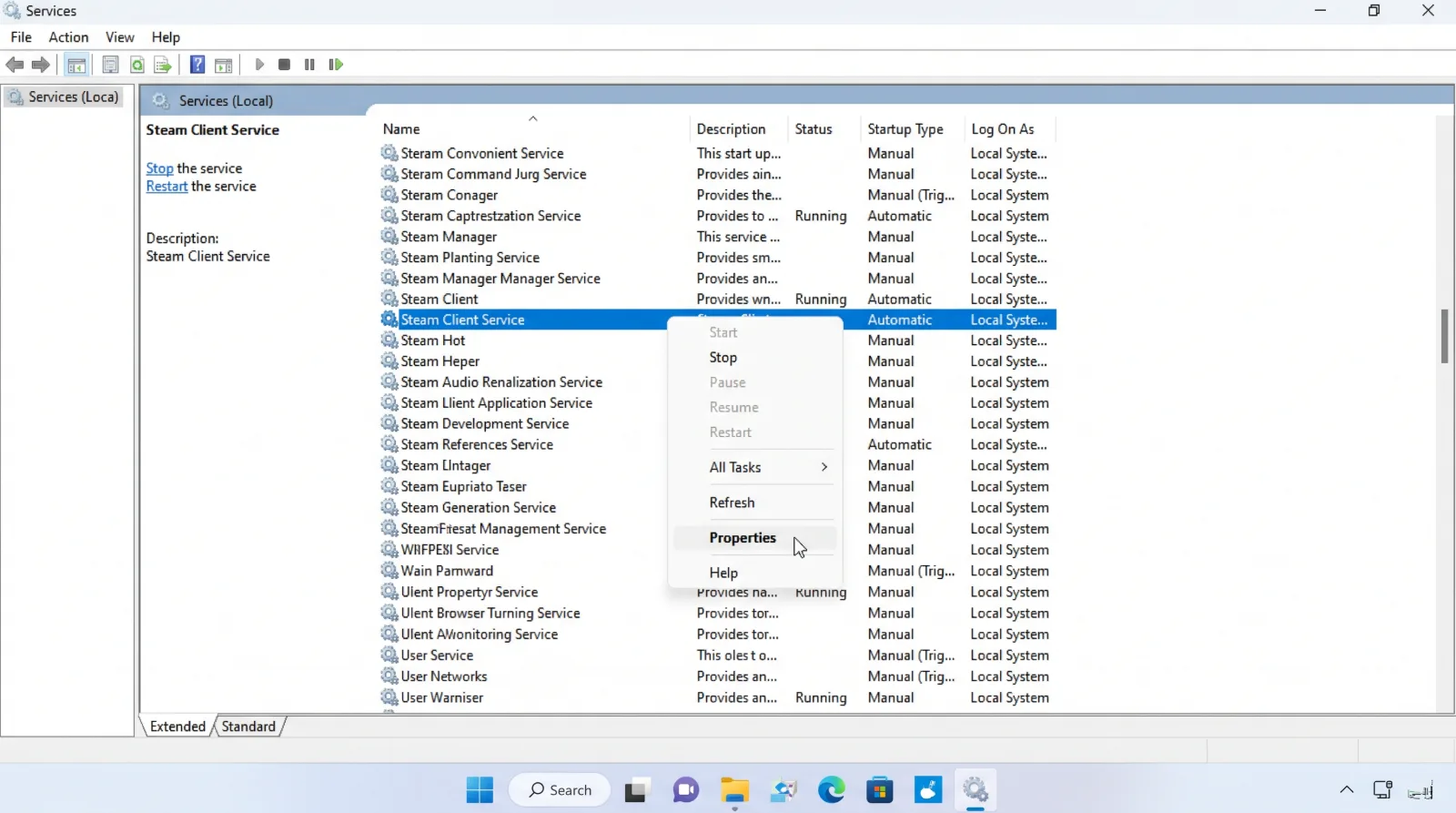
Step 1 Open Windows Services Console:
Press Windows Key + R, type services.msc, and press Enter.
Step 2 Locate the Steam Client Service:
Scroll through the alphabetical list until you find Steam Client Service.
Step 3 Adjust Startup Type:
Right-click on the service, select Properties, and ensure the Startup type is set to Automatic or Manual (do not leave it on Disabled).
Step 4 Start the Service:
If the service status reads Stopped, click the Start button. Click Apply and OK to save your configuration.
Command-Line Service Re-Registration
If the service refuses to start through the management console:
- Open Command Prompt as Administrator.
- Enter the following command precisely:
"C:\Program Files (x86)\Steam\bin\SteamService.exe" /install
- Press Enter. This command registers the background service with the Windows kernel and establishes proper administrative privileges.
- Follow this by typing:
"C:\Program Files (x86)\Steam\bin\SteamService.exe" /repair
- Relaunch Steam normally once the command prompt completes execution.