How to Fix "Steam Service Error: Requires Some Maintenance"
Prompted by "The Steam service component requires some maintenance" on startup? Here is how to repair background permissions, reinstall service binaries, and eliminate startup loops.
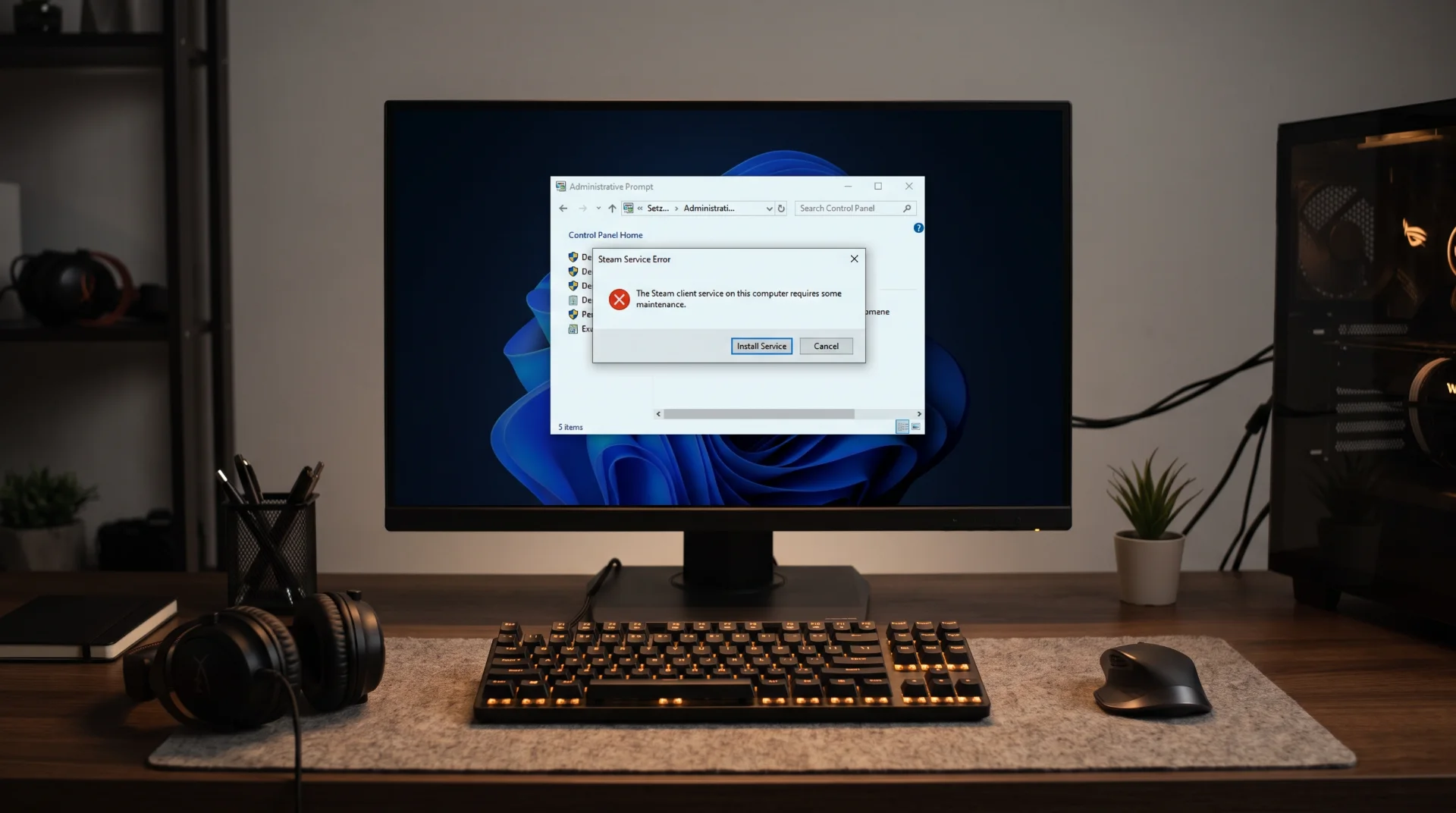
Administrative Loop: Fixing the Steam Service Maintenance Error
Launching the Steam client should be instantaneous, but thousands of users find themselves trapped in an administrative loop displaying: "The Steam service component on this computer requires some maintenance." Clicking Install or Repair often triggers the exact same prompt upon the next launch.
Telemetry data tracking steam service error requires some maintenance confirms this permission loop is an active issue following major OS updates.
Below is an engineering walkthrough to break the maintenance loop and properly reinstall background service dependencies.
What Triggers the Maintenance Prompt?
The Steam Client Service executes critical low-level tasks, including anticheat support and game installations. The maintenance error occurs when:
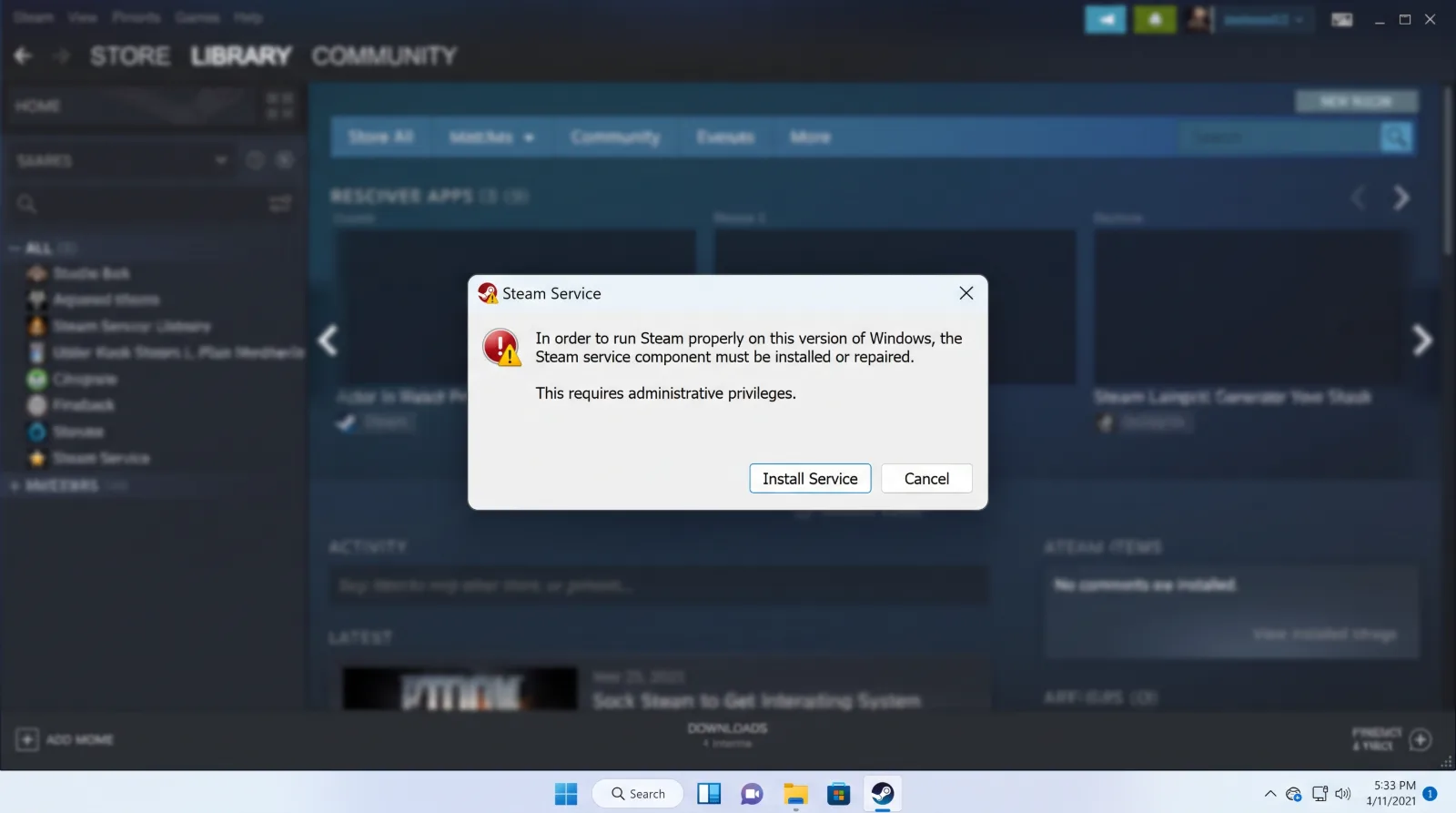
- Insufficient User Account Control (UAC) Elevation: The service installer cannot write to
C:\Program Files (x86)\Common Files\Steamwithout elevated permissions. - Conflicting Antivirus Heuristics: Security suites block
Steamservice.exefrom registering as an active background daemon. - Leftover Registry Keys: Corrupted registry paths from a previous installation point toward obsolete directory structures.
Step-by-Step Fix: Administrative Execution
Step 1 Force Administrative Launch:
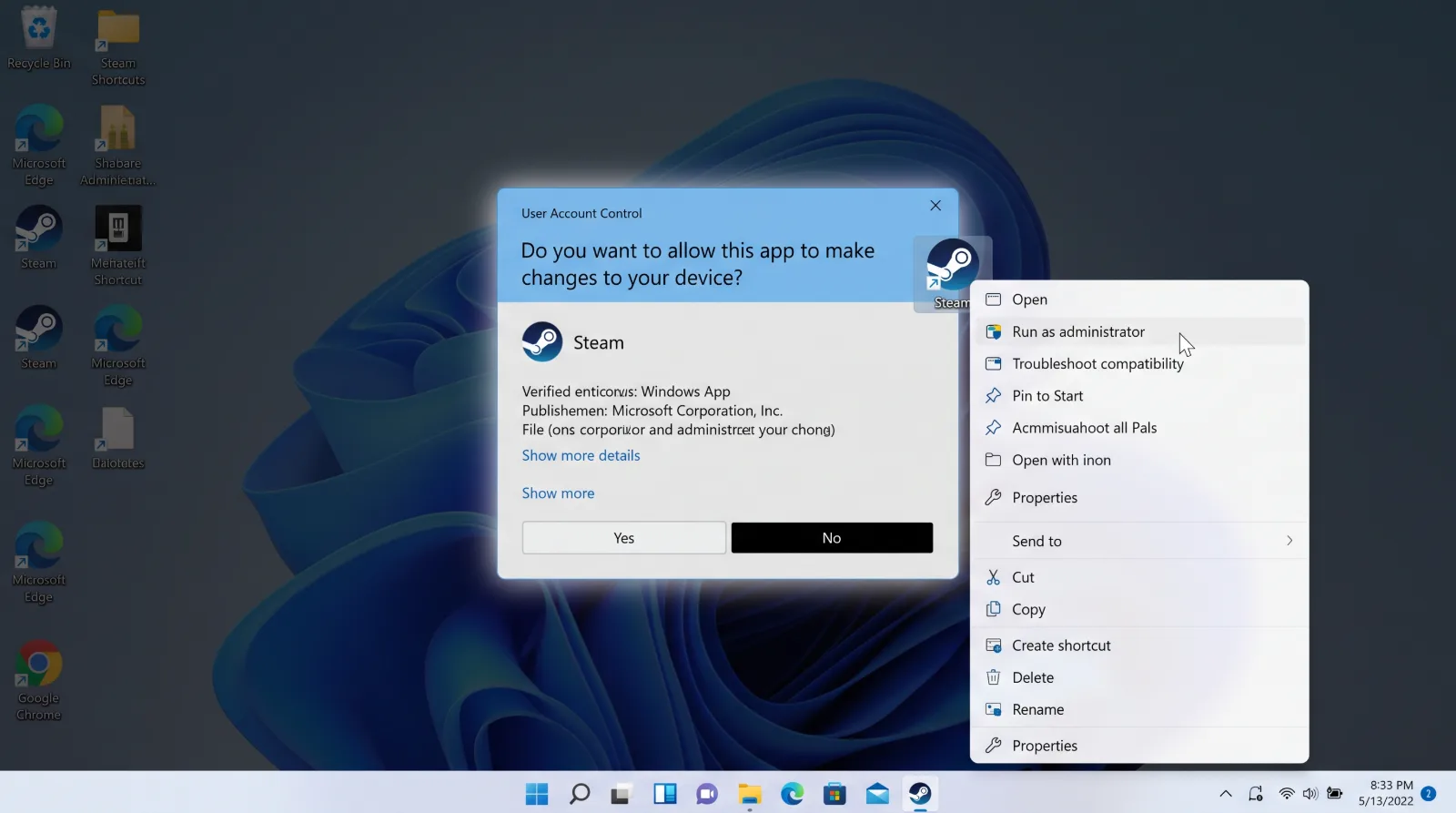
Right-click on your Steam desktop shortcut and select Run as administrator. When the maintenance prompt appears, click Install Service. Administrative elevation often allows the setup process to write necessary files cleanly.
Step 2 Manual Command Prompt Repair:
If the graphical repair fails:
- Close Steam completely via Task Manager.
- Open Command Prompt as Administrator.
- Run the following command:
"C:\Program Files (x86)\Steam\bin\SteamService.exe" /repair
- Wait approximately 30 seconds for the operation to complete in the background, then relaunch Steam.
Verify Antivirus Exclusions
Ensure your active security software is not sandboxing the service:
Add an exclusion for Steamservice.exe located inside both C:\Program Files (x86)\Steam\bin\ and C:\Program Files (x86)\Common Files\Steam\.