How to Fix "There Was an Error Communicating with the Steam Servers
Blocked by "There was an error communicating with the Steam servers"? Here is how to verify real-time Valve server status, reset network Winsock protocols, and fix authentication lockouts.
Authentication Barrier: Fixing Steam Server Communication Errors
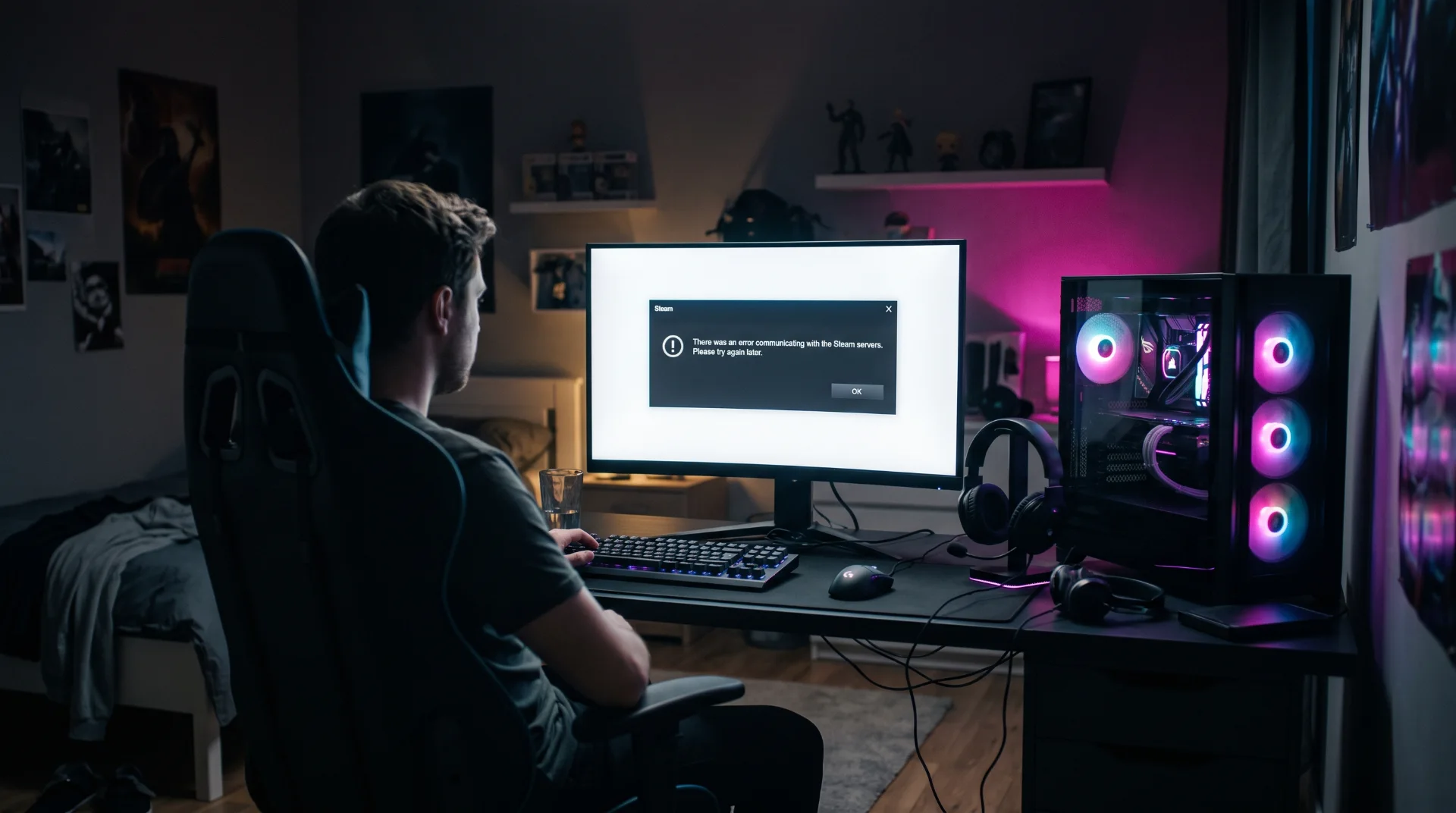
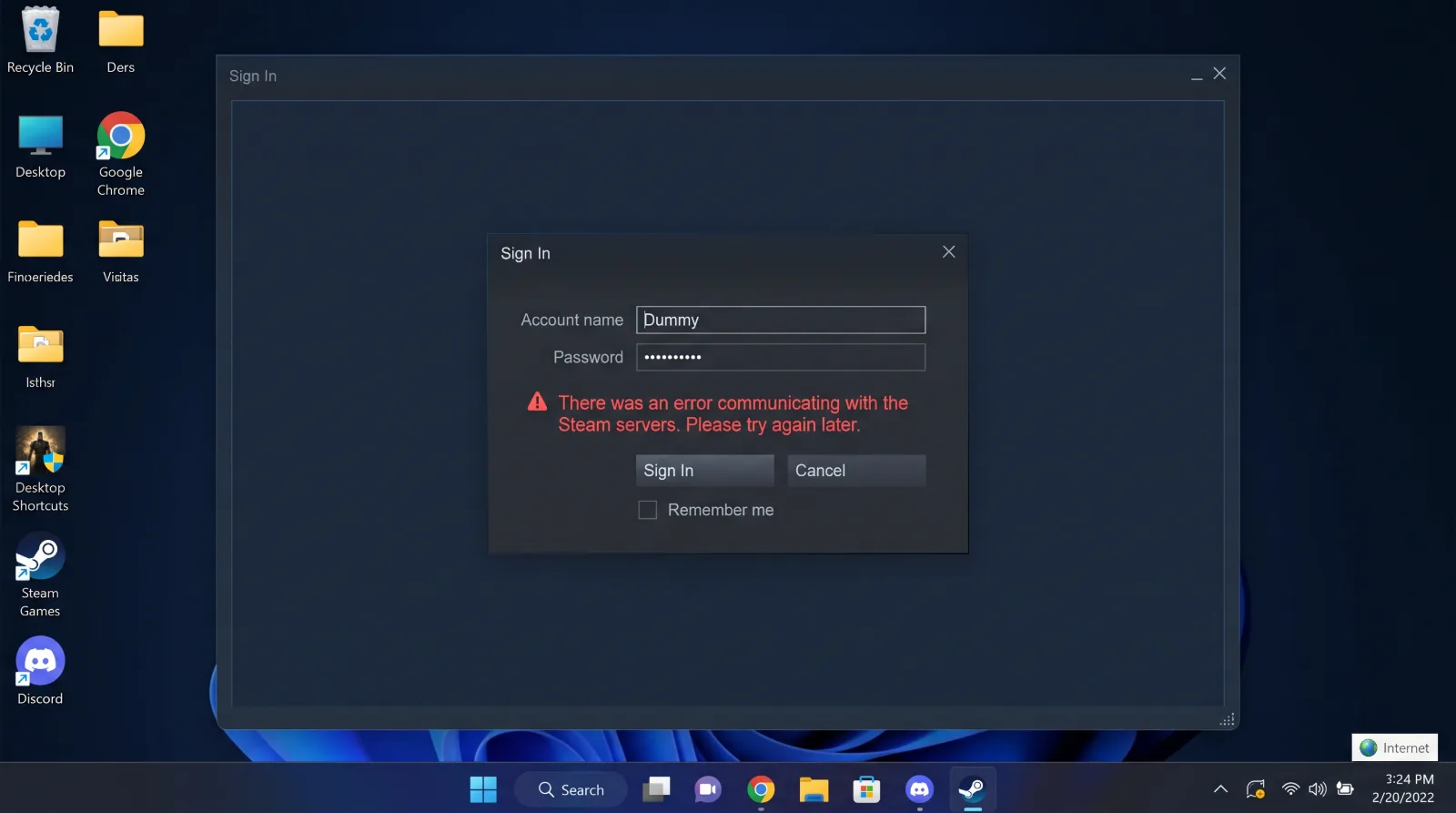
Few roadblocks are as definitive as opening your desktop client only to be met with: "There was an error communicating with the Steam servers. Please try again later."[cite: 30] This message halts your ability to sign in, purchase games, or access your community inventory, leaving you completely disconnected from the Valve network.
Surges across terms like there was an error communicating with the steam servers and steam server status show that this problem frequently strikes during major game launches and unexpected routing failures.
Below is an analytical troubleshooting breakdown to determine whether Valve’s infrastructure is offline or your local network stack is failing its cryptographic handshake.
Distinguishing Server Outages from Local Protocol Faults
Before altering network configurations, verify whether the disruption is universal or local:
- Routine Tuesday Maintenance: Valve conducts routine maintenance on their server infrastructure every Tuesday afternoon (Pacific Time). This scheduled window causes brief 10 to 15-minute global authentication dropouts.
- Local Winsock Catalog Corruption: Network interruptions or aggressive antivirus software can corrupt the Windows Winsock API, preventing the Steam client from establishing outbound TCP/UDP connections.
- Stale Routing Protocols: Your Internet Service Provider (ISP) may cache outdated routing tables that point toward decommissioned Valve content delivery nodes.
Diagnostic Step 1: Checking Real-Time Server Telemetry
Before attempting complex system modifications, check independent telemetry:
Check Third-Party Trackers: Visit independent portals like SteamDB or Downdetector to verify if widespread regional spikes are occurring[cite: 30].
Inspect Regional Status: If the Steam Web API and Connection Managers show normal operational green bars, the problem resides on your local machine.
Diagnostic Step 2: Resetting the Windows Winsock Catalog
Resetting the local network communication catalog resolves deep protocol corruption:
Step 1 Open Elevated Command Prompt:
Press the Windows Key, type cmd, right-click on Command Prompt, and select Run as Administrator.
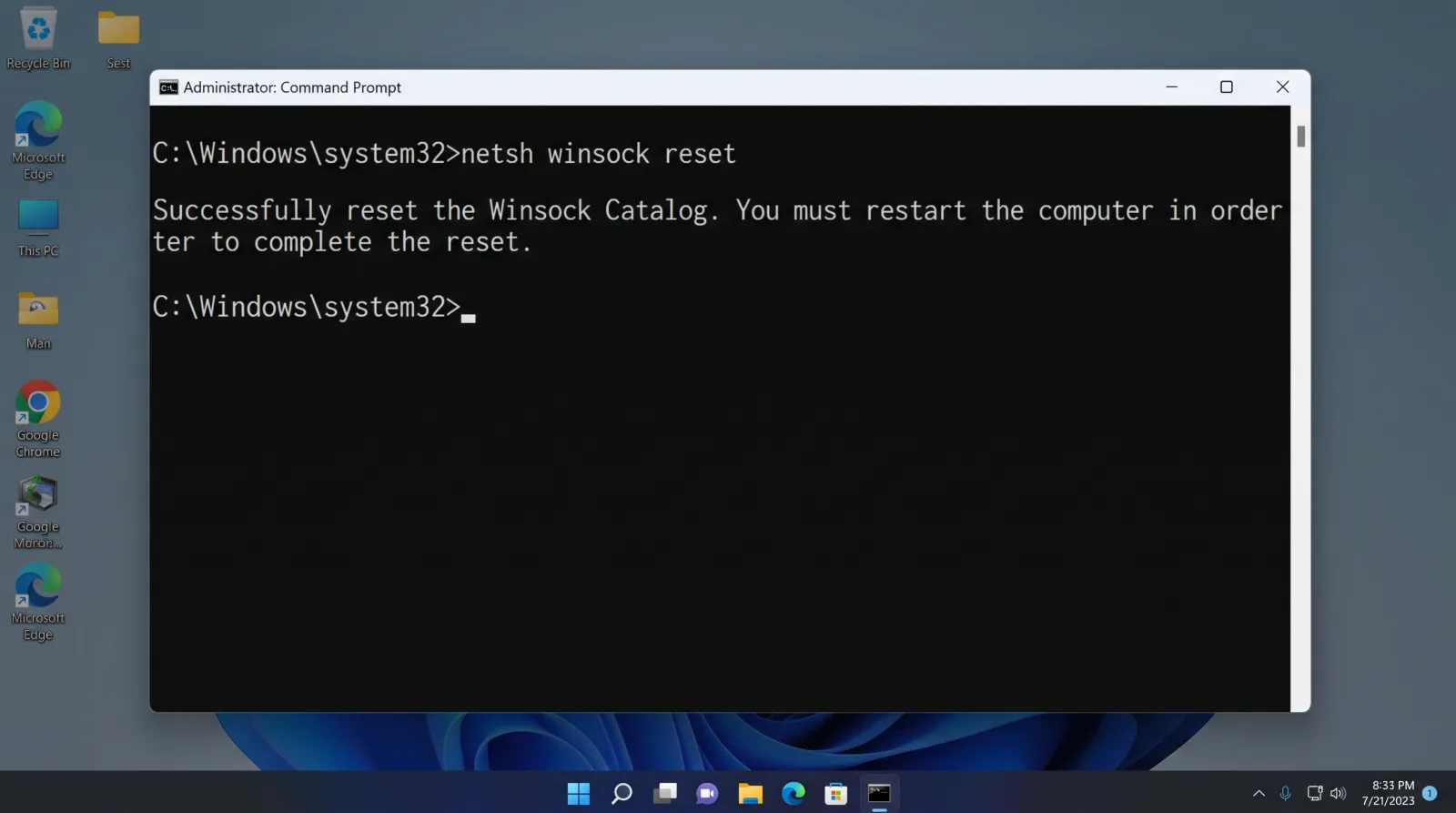
Step 2 Execute Winsock Reset:
Type netsh winsock reset and press Enter.
Step 3 Flush DNS Cache:
Type ipconfig /flushdns and press Enter.
Step 4 Restart Windows:
Restart your PC completely to re-initialize your local network adapter with fresh socket protocols.
Diagnostic Step 3: Repairing the Steam Service
If system files associated with Valve's background service are corrupted:
- Close Steam completely.
- Press Windows Key + R, enter
"C:\Program Files (x86)\Steam\bin\SteamService.exe" /repair, and press Enter. - A command window will flash briefly while permissions are re-indexed. Launch Steam normally once execution completes.