How to Play Fortnite on Xbox Cloud Gaming: Free Setup, Latency Fixes & Controller Guide
Want to play Fortnite on iPhone, Android, or a low-end Chromebook without paying for Xbox Game Pass or waiting for massive downloads? Here is the complete free setup guide, browser performance tweaks, and input lag fixes.
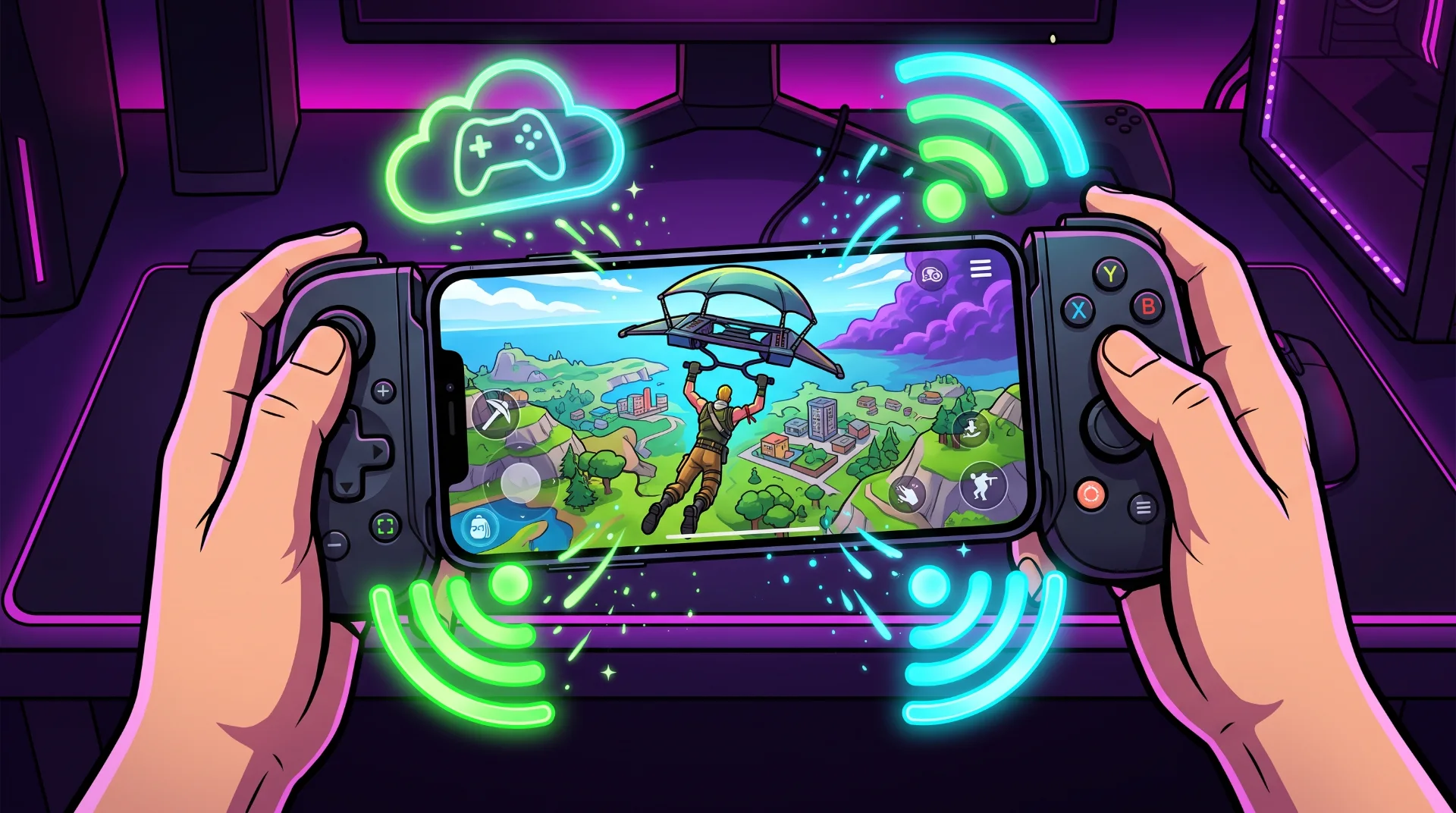
Cloud Drop: Running Fortnite via Xbox Cloud Gaming Without Downloads
Fortnite remains one of the largest battle royale titles in the world, but keeping up with weekly 20 GB to 60 GB patches—not to mention having dedicated gaming hardware—creates a massive barrier for mobile and budget players.
The breakout rise in searches for cloud streaming highlights an overlooked reality: you do not need a console, a gaming PC, or even an active paid subscription to play Fortnite on high-end server hardware. Through Microsoft’s direct partnership with Epic Games, Fortnite remains 100% free-to-play on browser-based cloud servers without an Xbox Game Pass Ultimate membership.
Below is the verified setup procedure across iOS, Android, and PC, paired with network-level adjustments to eliminate input latency and stream stuttering.
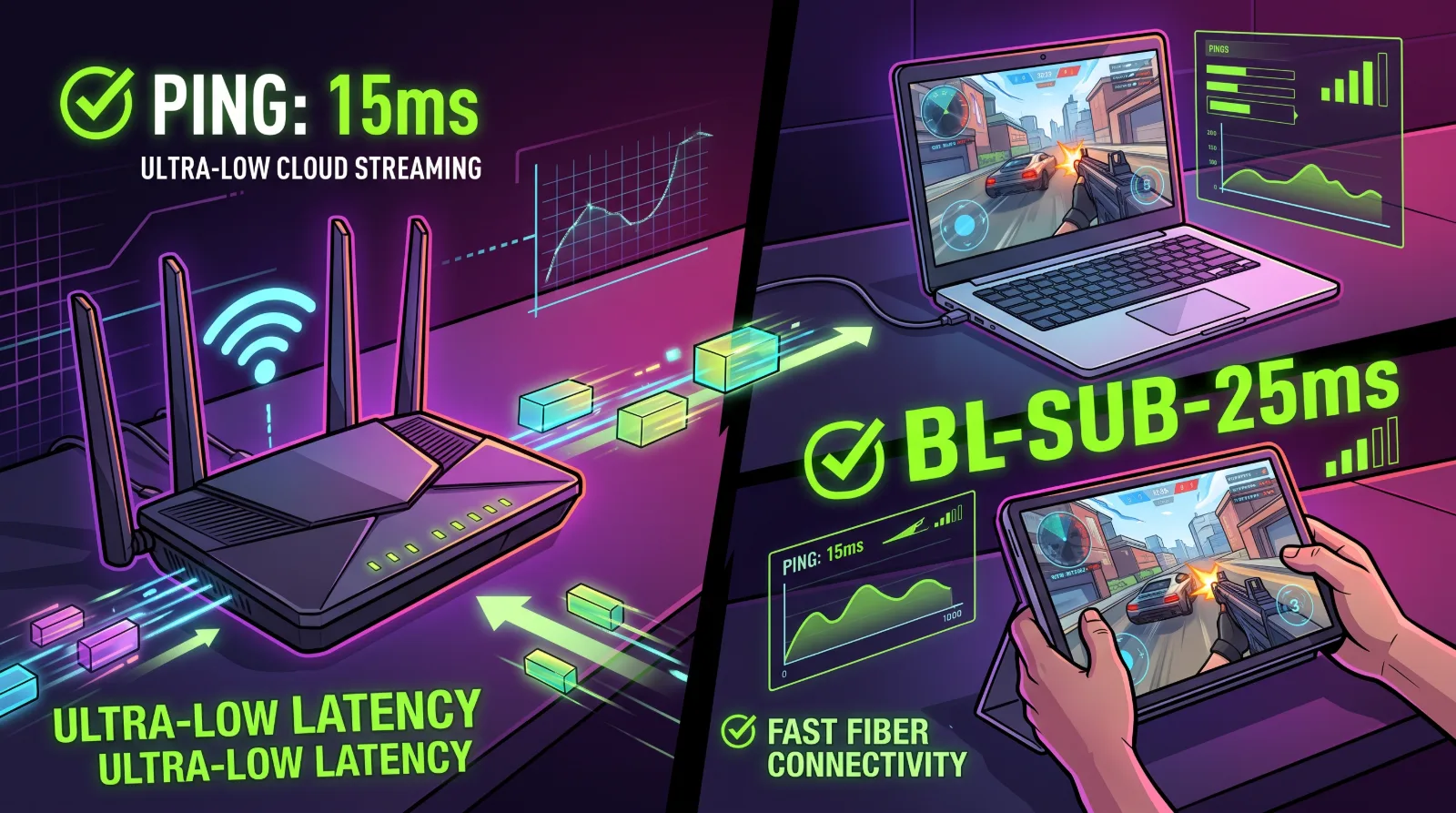
The Core Advantage: Cloud Gaming vs. Native Mobile
Streaming Fortnite directly from custom Xbox Series X server racks delivers several distinct advantages over native mobile ports:
| Feature | Xbox Cloud Gaming (Free) | Native Android / Mobile App |
|---|---|---|
| Subscription Cost | $0 / €0 (Free Microsoft Account) | $0 / €0 (Direct Download) |
| Storage Footprint | 0 GB (Runs in Web Browser) | ~25 GB to 35 GB Local Storage |
| Patch Wait Times | Instant (Servers Auto-Update) | Requires 10–30 Min Download per Patch |
| Target Frame Rate | Stable 60 FPS (1080p Stream) | 30–60 FPS (Depends on Phone Thermal Throttling) |
| Platform Compatibility | iOS, Android, macOS, Windows, ChromeOS | Android & Sideloaded iOS EU Only |
Step-by-Step Setup: Playing Fortnite for Free in 3 Minutes
You do not need to download software from app stores. Access is managed through Progressive Web Apps (PWAs).
For iPhone and iPad (Safari Setup)
Because native app stores restrict cloud streaming apps, iOS players must launch via Safari:
- Open Safari and navigate directly to the official Xbox Play Portal.
- Tap the Share icon (square with an upward arrow) in the browser navigation bar.
- Scroll down and select Add to Home Screen. This generates a dedicated, borderless web-app shortcut.
- Launch the newly created Cloud Gaming icon from your home screen.
- Sign in with any free Microsoft account and link your Epic Games Account to retain all cosmetics, V-Bucks, and Battle Pass progression.
- Select Fortnite and click Play.
For Android, Windows PC, and Chromebooks
- Launch Google Chrome or Microsoft Edge.
- Navigate to
xbox.com/playand log into your Microsoft account. - Connect any Bluetooth or USB controller (or toggle on native mobile touch controls).
- Launch Fortnite instantly without installing local game binaries.
Eliminating Input Lag: 4 Crucial Network Tweaks
Cloud gaming transmits compressed video down to your screen while uploading your controller inputs back to the server. If your configuration introduces latency, building and shotgun flick-shots become unplayable. Follow these guidelines to lock your input latency under 35 milliseconds:
1. Force 5 GHz or Wi-Fi 6 (Never Use 2.4 GHz)
Standard 2.4 GHz home Wi-Fi bands suffer from severe packet collision caused by smart home appliances and Bluetooth accessories. Ensure your device is connected exclusively to your router’s 5 GHz or Wi-Fi 6 network band. A 2.4 GHz signal adds 40ms to 80ms of random micro-stuttering.
2. Disable Location Services on iOS & macOS
Apple devices continuously scan nearby Wi-Fi networks in the background to refine system location accuracy. This background scanning triggers a 200ms latency spike roughly every 60 seconds. Navigating to Settings > Privacy & Security > Location Services and temporarily toggling it off while playing completely flattens packet spikes.
3. Use Hardware-Accelerated Browsers
If playing on a PC, Mac, or Chromebook, verify that Hardware Acceleration is active inside your browser settings (chrome://settings/system). Without hardware acceleration, your CPU handles real-time video decoding, causing frame drops and audio desync.
4. Direct USB Connection Over Bluetooth
While wireless Bluetooth controllers are convenient, budget mobile Bluetooth chips can add 8ms to 16ms of input delay on top of your stream latency. Using a direct USB-C connection—or a dedicated mobile grip like the Backbone One or Razer Kishi—drops physical controller input latency down to sub-2ms.
Native Touch Controls vs. Dedicated Controller
Fortnite on Xbox Cloud Gaming features custom on-screen touch overlays developed specifically for mobile screens:
- Custom HUD Layouts: If you do not own a physical controller, the cloud interface automatically detects touch input and projects Fortnite’s native mobile layout, allowing you to customize fire buttons, weapon slots, and build binds.
- Controller Advantage: For ranked Battle Royale lobbies, pairing an official Xbox Wireless Controller, PS5 DualSense, or third-party Bluetooth pad grants full console aim-assist curves and tactile trigger responses.
Frequently Asked Questions (FAQ)
Do I need Xbox Game Pass Ultimate to play Fortnite on the cloud?
No. Unlike most titles in the cloud library, Fortnite is explicitly free-to-play. You only require a standard, free Microsoft account to launch the game.
Does my Battle Pass progression carry over?
Yes. Cloud gaming connects directly to Epic Online Services. All skins, emotes, V-Bucks balances, and seasonal quest progress sync automatically across your console, PC, and mobile accounts.
What is the minimum internet speed required?
Microsoft recommends a minimum download speed of 20 Mbps for mobile devices and 25 Mbps for tablets and PCs, with a network ping under 50ms to the nearest Azure data center.