OpenIV GTA IV Modding Guide: How to Safely Install HD Textures & Vehicle Packs
Want to modernize Liberty City with high-definition textures and handling mods? Here is the complete beginner's guide to installing OpenIV, managing RPF archives, and modding GTA IV without crashes.
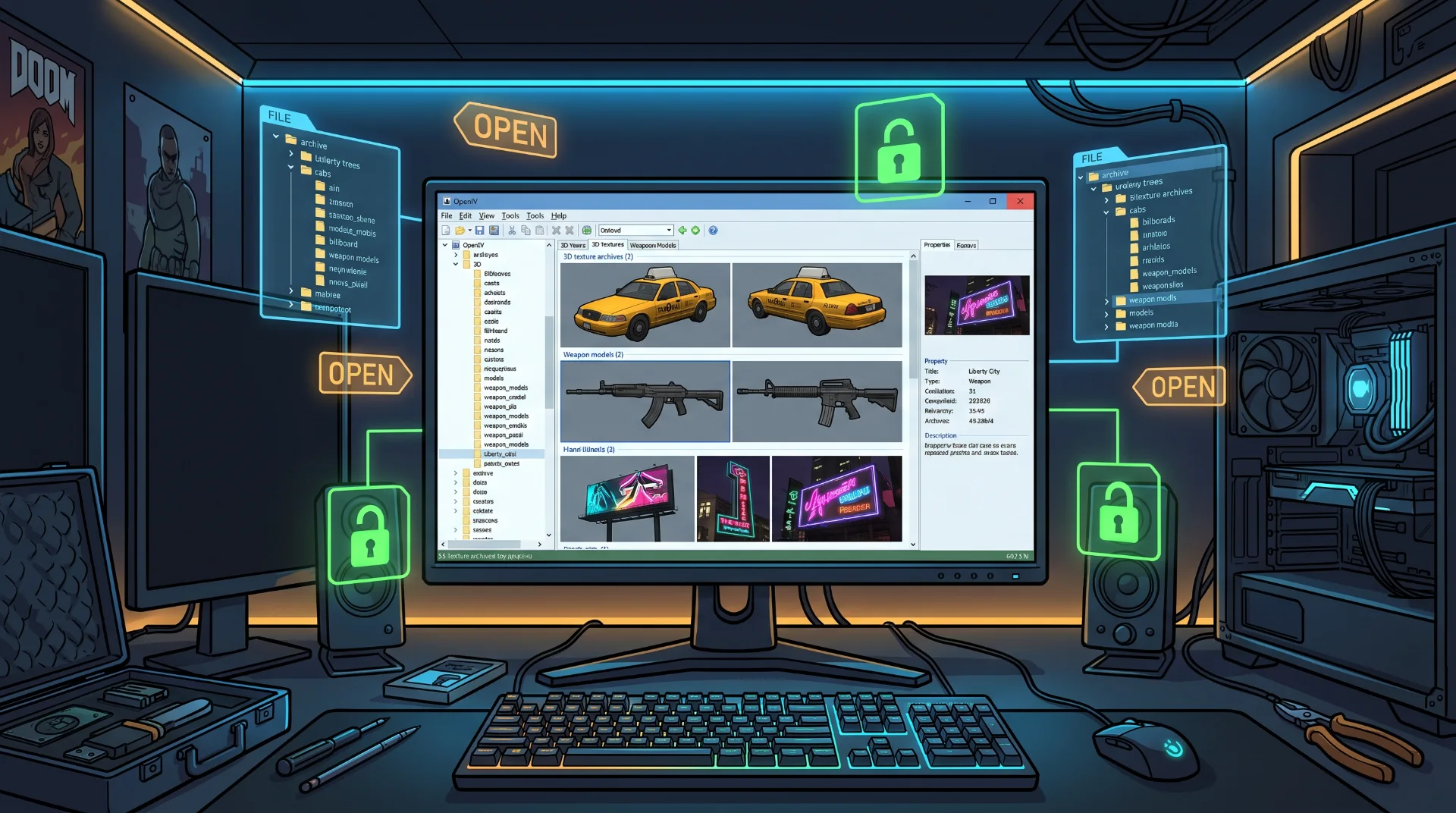
Modernizing Liberty: The Essential OpenIV Modding Guide for GTA IV
While official remasters can sometimes disappoint, the PC modding community has quietly transformed Grand Theft Auto IV into a modern visual marvel. At the heart of every visual overhaul, high-resolution texture replacement, and real-world vehicle model lies a single foundational software suite: OpenIV.
Originally created to decompress and inspect the proprietary archive structures of Rockstar's RAGE engine, OpenIV remains the primary gateway for modding both GTA IV and GTA V safely.
Below is an operational guide explaining how OpenIV interacts with protected game archives, how to configure a safe isolated modding directory, and how to install high-definition texture packs without corrupting core installations.
Understanding the RPF Architecture
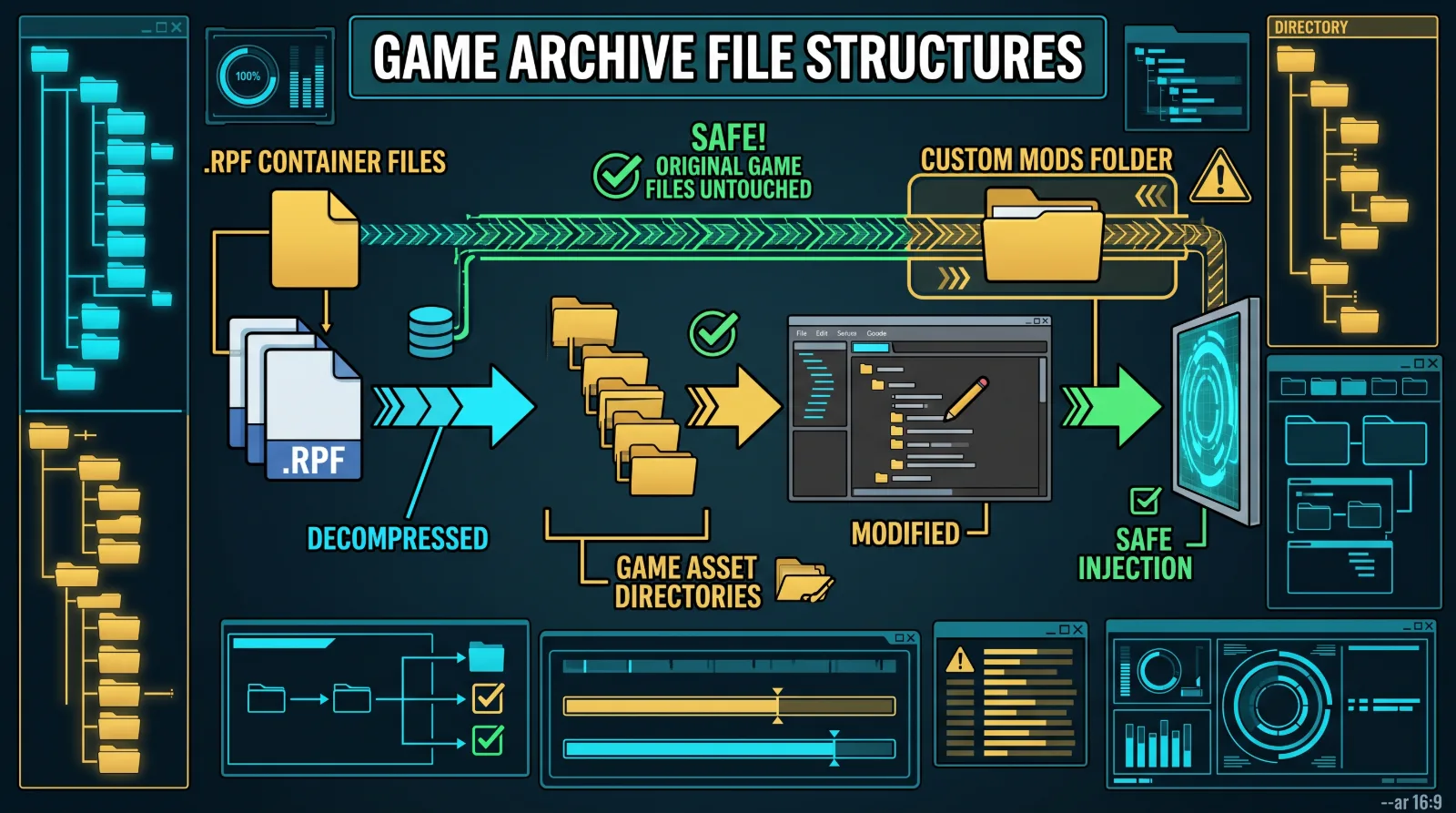
Rockstar Games stores audio, 3D models, pedestrian textures, and vehicle handling parameters inside encrypted archive files with the .rpf extension (such as vehicles.img or pc.rpf):
- Read-Only Protection: Standard operating systems cannot read or edit RPF files directly.
- Archive Decompression: OpenIV functions as an archive manager, allowing users to browse internal game folders, extract raw
.wtdtexture dictionaries and.wftmodel files, replace them with updated high-resolution assets, and rebuild the archive securely.
Step-by-Step OpenIV Setup
To configure OpenIV safely on modern operating systems:
Step 1 Installation:
Download the verified setup executable from the official developer portal and follow the installation wizard.
Step 2 Locate Game Directory:
Launch OpenIV, select Grand Theft Auto IV (Windows), and browse to select your clean game installation folder.
Step 3 Install ASI Loader & OpenIV.asi:
Once inside the interface, navigate to Tools > ASI Manager. Install both the ASI Loader and OpenIV.asi plugins. These components allow the game engine to read modified files without tripping internal integrity checks.
The Golden Rule: Always Back Up Core Files
Never modify primary archives without redundant backups:
Safe Modding Workflow:
[Clean Master Archive] ---> [Copy to Backup Folder] ---> [Inject HD Textures via OpenIV] ---> [Rebuild Archive]
- Maintaining Clean Backups: Before replacing
vehicles.imgwith real-world European or American sports cars, export an unedited copy of the original archive to an external storage drive. If a modded vehicle mesh contains faulty collision polygons, restoring the original backup takes ten seconds. - Archive Rebuilding: After replacing textures, always click File > Rebuild. Rebuilding defragments internal file indexes, preventing sudden memory crashes while cruising through packed Algonquin streets.
- Modern Enhancement Pairing: Pair OpenIV visual upgrades with engine stabilization patches detailed in our GTA IV Fusion Fix optimization guide.