Roblox Eclipse Animator Guide: Keyframes, Inverse Kinematics & Studio Export
Want to create fluid combat moves and cinematic cutscenes in Roblox Studio? Here is the complete breakdown of the Eclipse Animator plugin, inverse kinematics setup, bezier easing curves, and script integration.
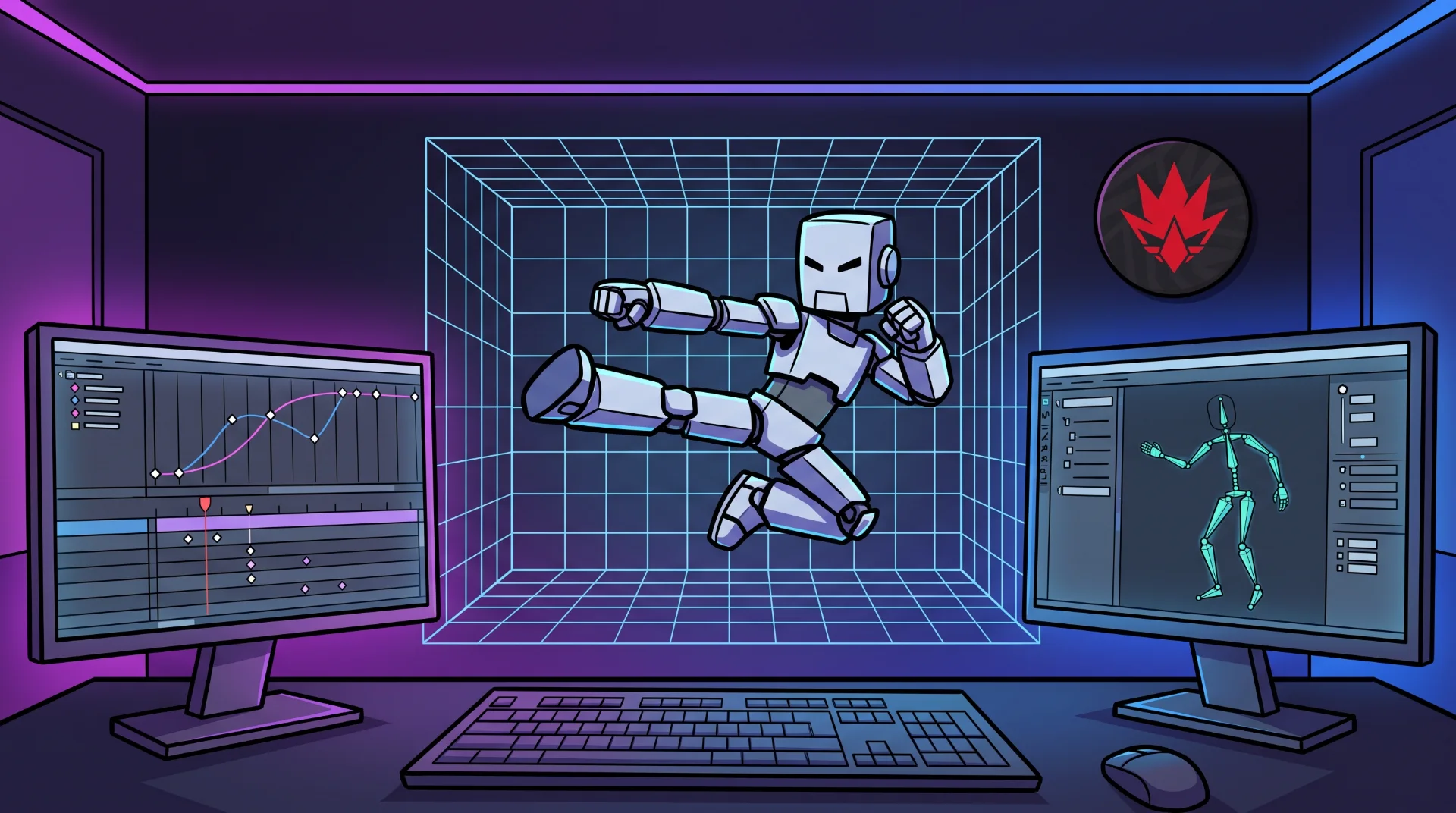
Fluid Motion: Mastering Character Rigs with Eclipse Animator in Roblox Studio
The standard built-in Animation Editor provided in Roblox Studio is sufficient for basic idle breathing loops and simple walking cycles. However, as independent developer studios push the visual boundaries of combat games, anime battle arenas, and narrative roleplaying worlds, the default toolset quickly becomes a creative bottleneck.
Among professional Roblox animators, third-party editor plugins have become industry standards. The explosive surge in searches for Eclipse Animator highlights a community-wide transition toward professional animation workflows, offering advanced inverse kinematics, customized timeline easing, and multi-rig synchronization.
Below is an engineering tutorial on installing Eclipse Animator, calibrating bone weights, and exporting optimized animation tracks into production code.
Why Top Animators Choose Eclipse Animator
The plugin replaces rigid keyframing with fluid timeline manipulation:
Core Advantages:
Full Inverse Kinematics Support: Moving a character foot automatically calculates natural knee and hip bend angles, eliminating awkward floating limb poses.
Multi-Model Scene Staging: Animate two interacting characters simultaneously within a single timeline, allowing precise synchronization for wrestling throws and weapon parries.
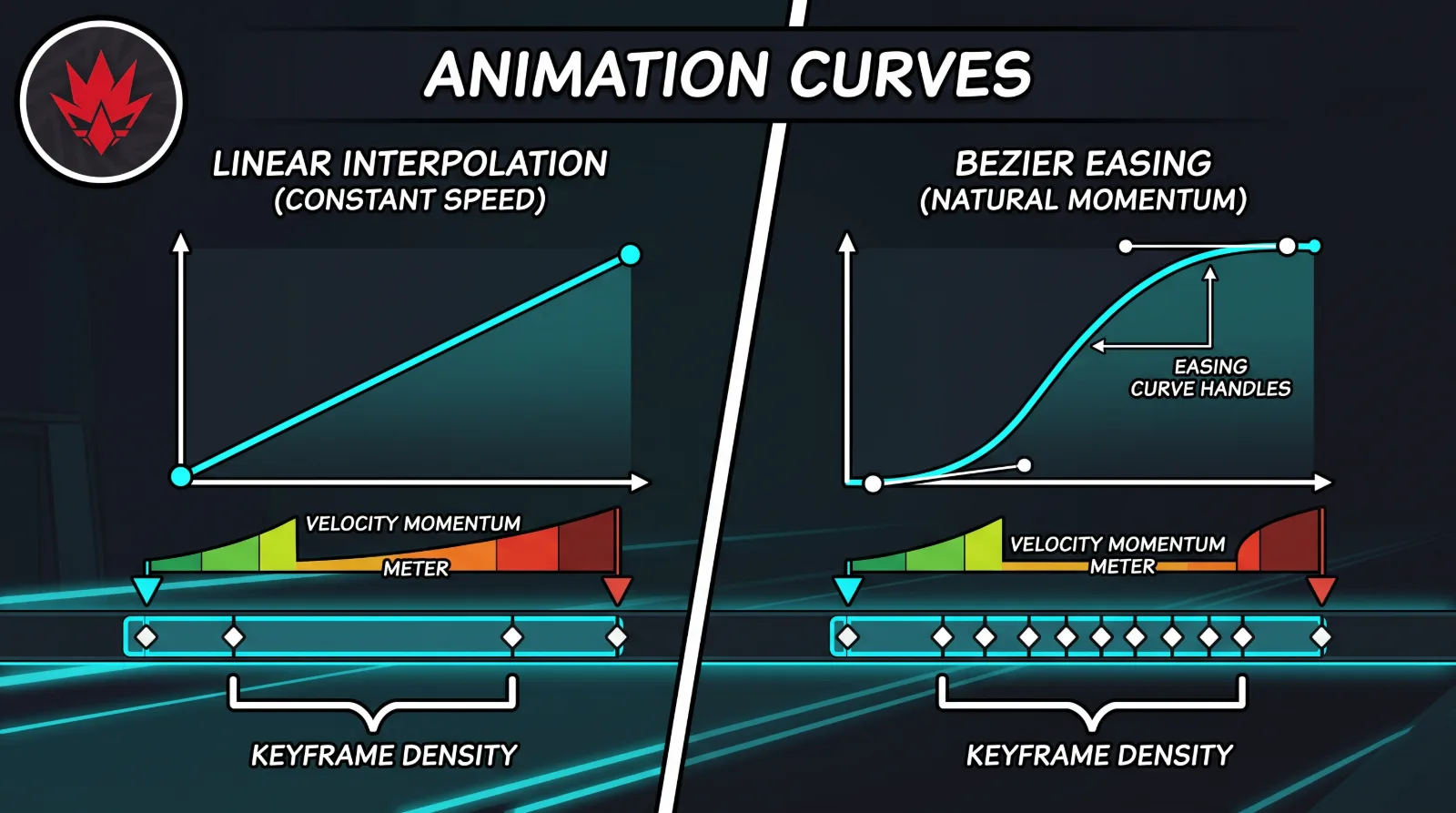
Advanced Graph Curves: Fine-tune acceleration using custom cubic-bezier graphs rather than generic ease-in or ease-out presets.
Step-by-Step Installation via the Creator Store
To install verified plugins safely without risking malicious backdoor scripts:
Open Roblox Studio and load your target development environment.
Open the View tab on the top toolbar and activate the Toolbox window.
Switch the Toolbox dropdown from Models to Plugins.
Search for Eclipse Animator and verify the creator profile credentials before clicking Install.
The plugin dock will automatically populate within your active Plugins menu bar.
The Professional Keyframe Workflow
Dealing with high-performance animations requires minimizing network bandwidth:
Step 1 Rig Preparation:
Ensure your character model is built upon a standard R15 or custom skinned mesh hierarchy with a HumanoidRootPart designated as the primary motor anchor.
Step 2 Keyframe Staging:
Set primary keyframe poses on major movement beats: the anticipation windup, the contact strike, and the recovery follow-through.
Step 3 Easing Polishing:
Apply elastic or exponential easing to weapon swings to convey weight. Review how monetization connects with finished game experiences in our Roblox Creator Hub DevEx monetization guide.
Step 4 Exporting Animation IDs:
Save the sequence to Roblox servers through your Creator dashboard to generate an immutable Asset ID for your server scripts.