Steam Deck Cloud Sync Error: How to Fix Out of Date Saves on Handhelds
Getting a persistent Cloud Sync Error on your Steam Deck? Here is how to resolve sleep-mode desyncs, force cloud updates over Wi-Fi, and prevent overwriting PC saves.
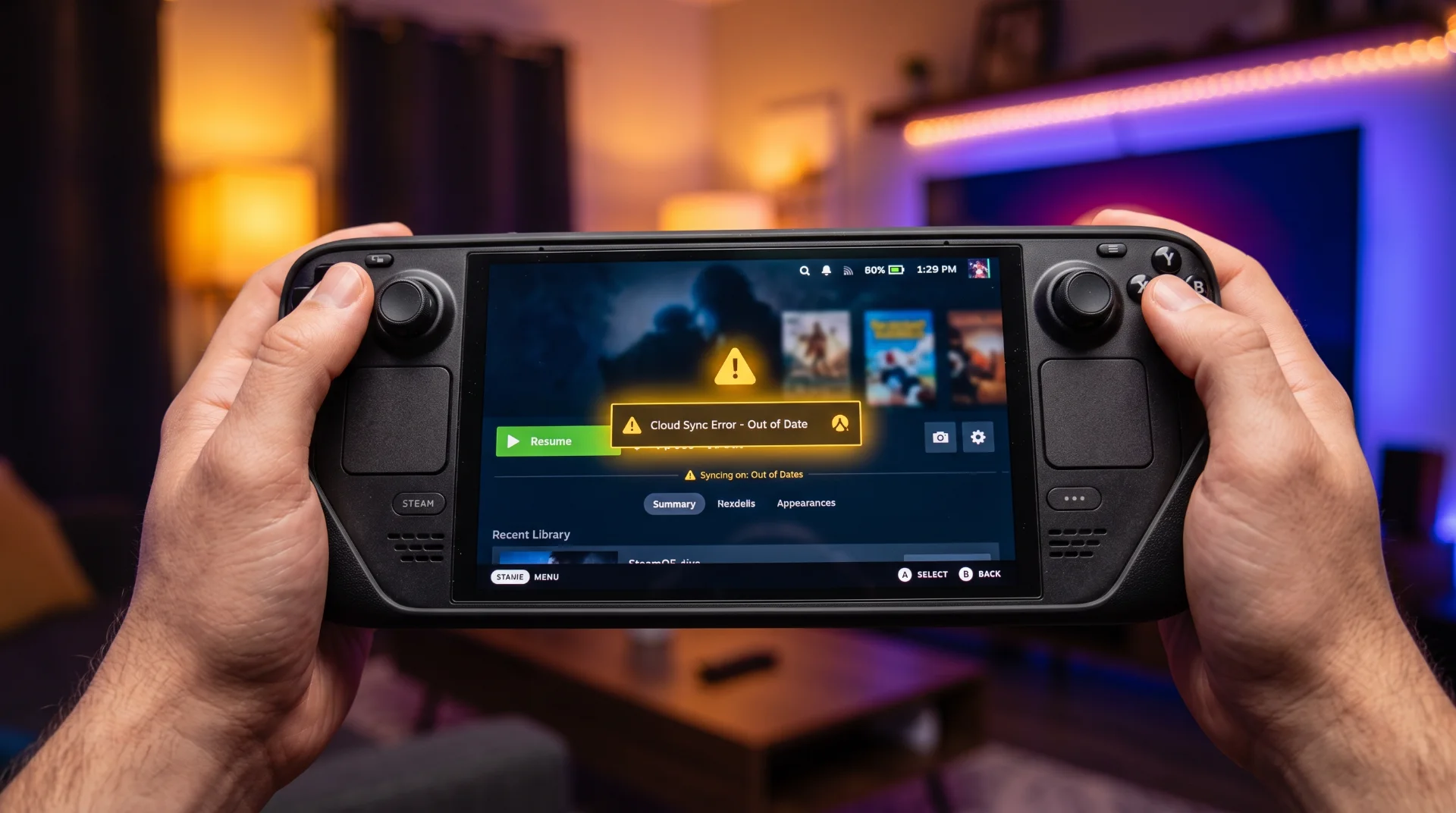
Handheld Desync: Fixing Steam Cloud Sync Errors on the Steam Deck
Valve’s Steam Deck has transformed handheld PC gaming, allowing players to start a sprawling RPG campaign on a desktop tower and continue seamlessly on the couch. However, this mobility introduces a frequent headache: the dreaded Steam Deck Cloud Sync Error[cite: 29].
Because the Steam Deck relies on low-power sleep states, waking the handheld frequently catches the operating system mid-handshake, resulting in an "Out of Date" warning.
Below is an operational troubleshooting guide tailored specifically for SteamOS to resolve handheld cloud save desynchronization.
Why the Steam Deck Desyncs More Often Than Desktop PCs
Handheld gaming patterns differ fundamentally from standard desktop sessions:
- Rapid Sleep State Transitions: Tapping the power button suspends the game immediately. If you suspend the console before SteamOS can upload your latest save, the cloud database flags the file as desynchronized.
- Wi-Fi Power Management Throttling: To conserve battery, SteamOS throttles wireless adapter polling during idle states, occasionally failing background sync attempts.
- Offline Play Queues: Playing offline during travel queues local saves that collide with desktop progress logged while the Deck was disconnected.
Step-by-Step Fix on SteamOS
Step 1 Manual Re-Sync Trigger:
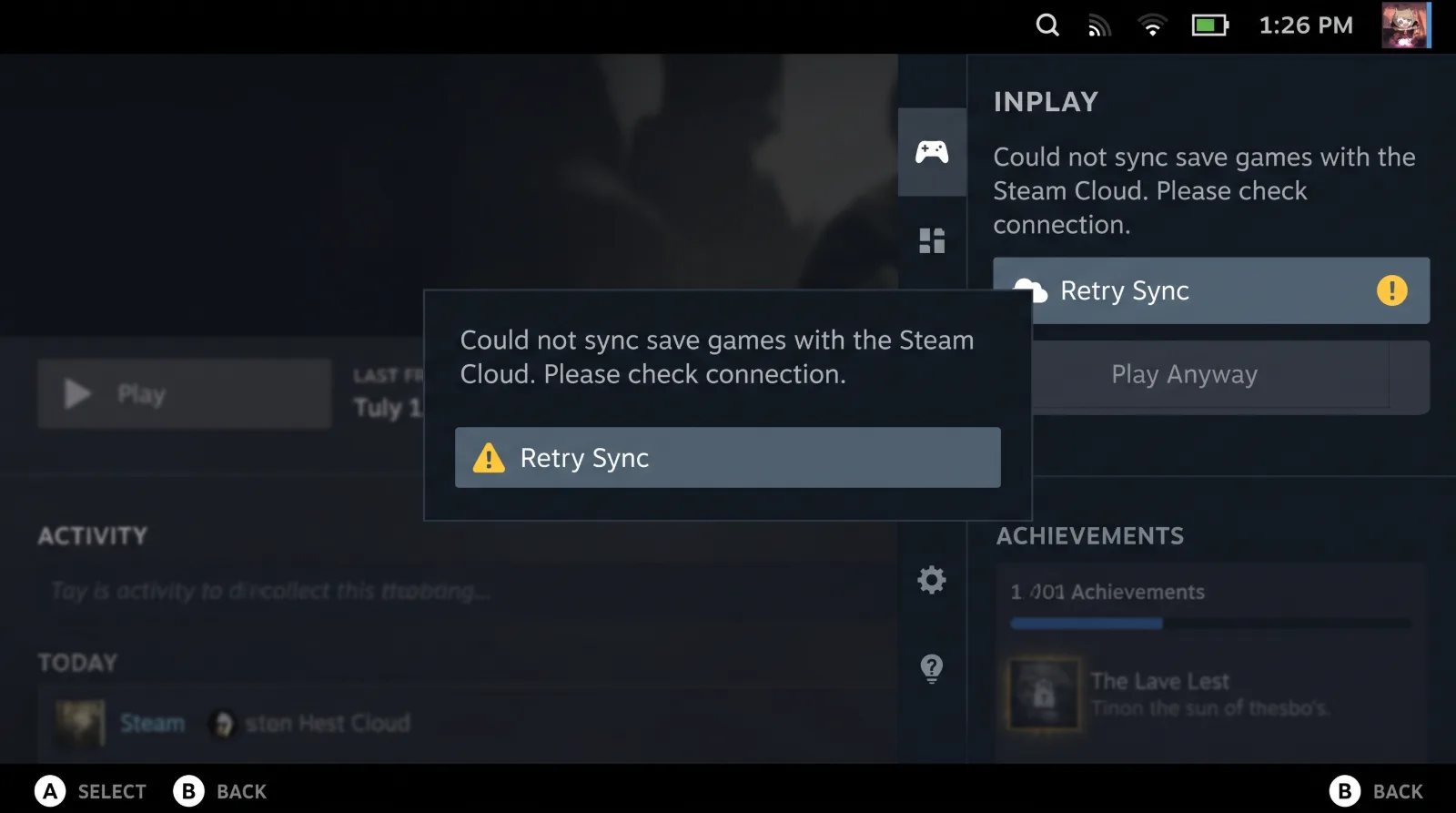
Before launching your game, navigate to the game’s landing page in your SteamOS library. Select the yellow Cloud Status banner and press Retry Sync. In many cases, establishing an active network connection clears the warning instantly.
Step 2 Disable Wi-Fi Power Management:
If cloud timeouts occur repeatedly on home Wi-Fi:
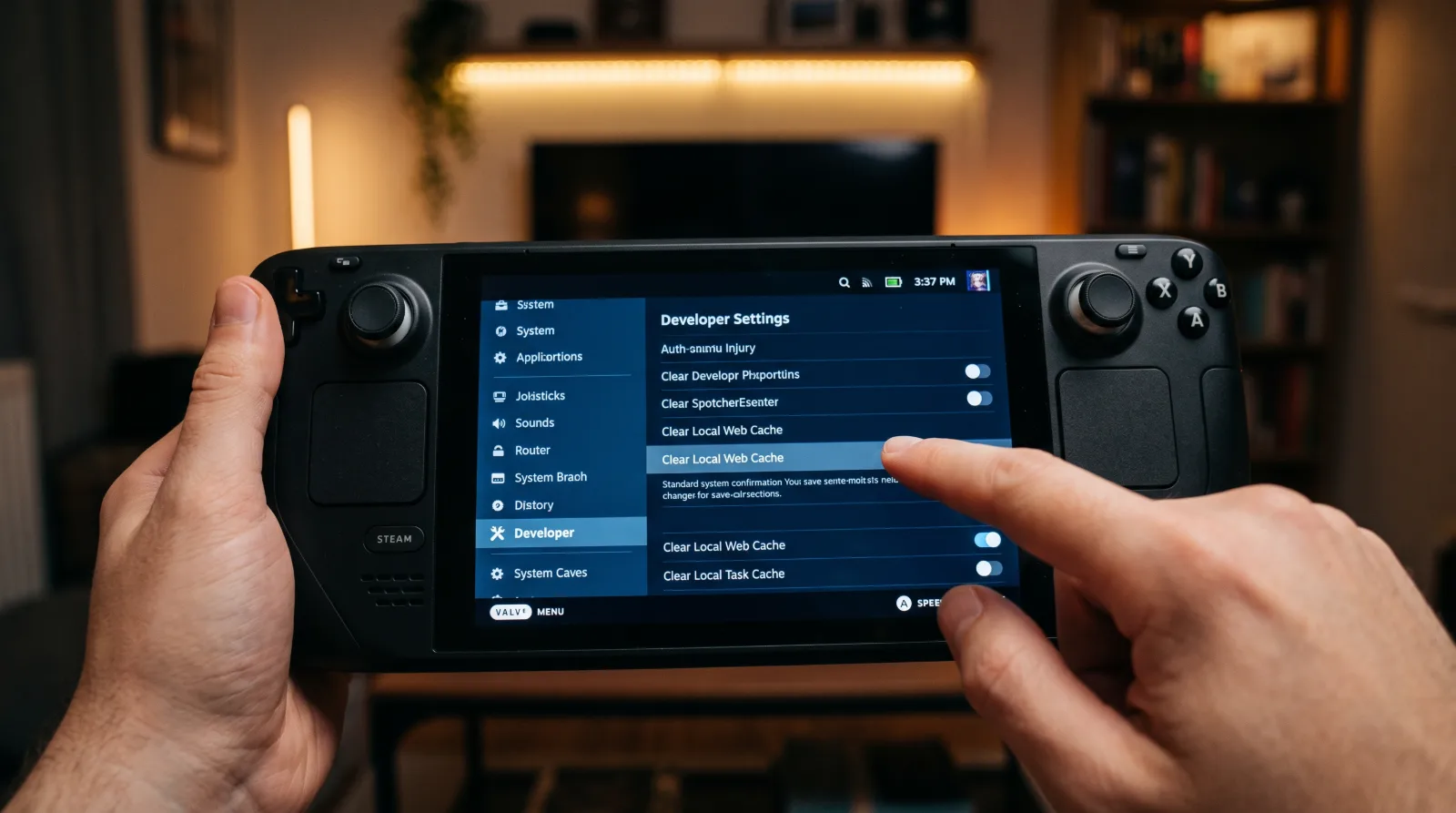
- Press the STEAM button and open Settings > System.
- Enable Enable Developer Mode.
- Scroll down the left sidebar to the new Developer menu.
- Locate Enable Wi-Fi Power Management and toggle it Off. This ensures full wireless bandwidth during sleep and wake cycles.
Step 3 Verify Cloud Sync via Desktop Mode:
Switch to Desktop Mode on your Steam Deck, open the standard desktop Steam client, and inspect the cloud settings under Settings > Cloud to verify that global synchronization is active.