Steam Workshop Error 16 Explained: How to Fix Item Download & Subscription Failures
Encountering Steam Workshop Error 16 when trying to download or subscribe to mods? Here is what causes this specific network timeout error and how to clear your staging cache to restore mod installs.
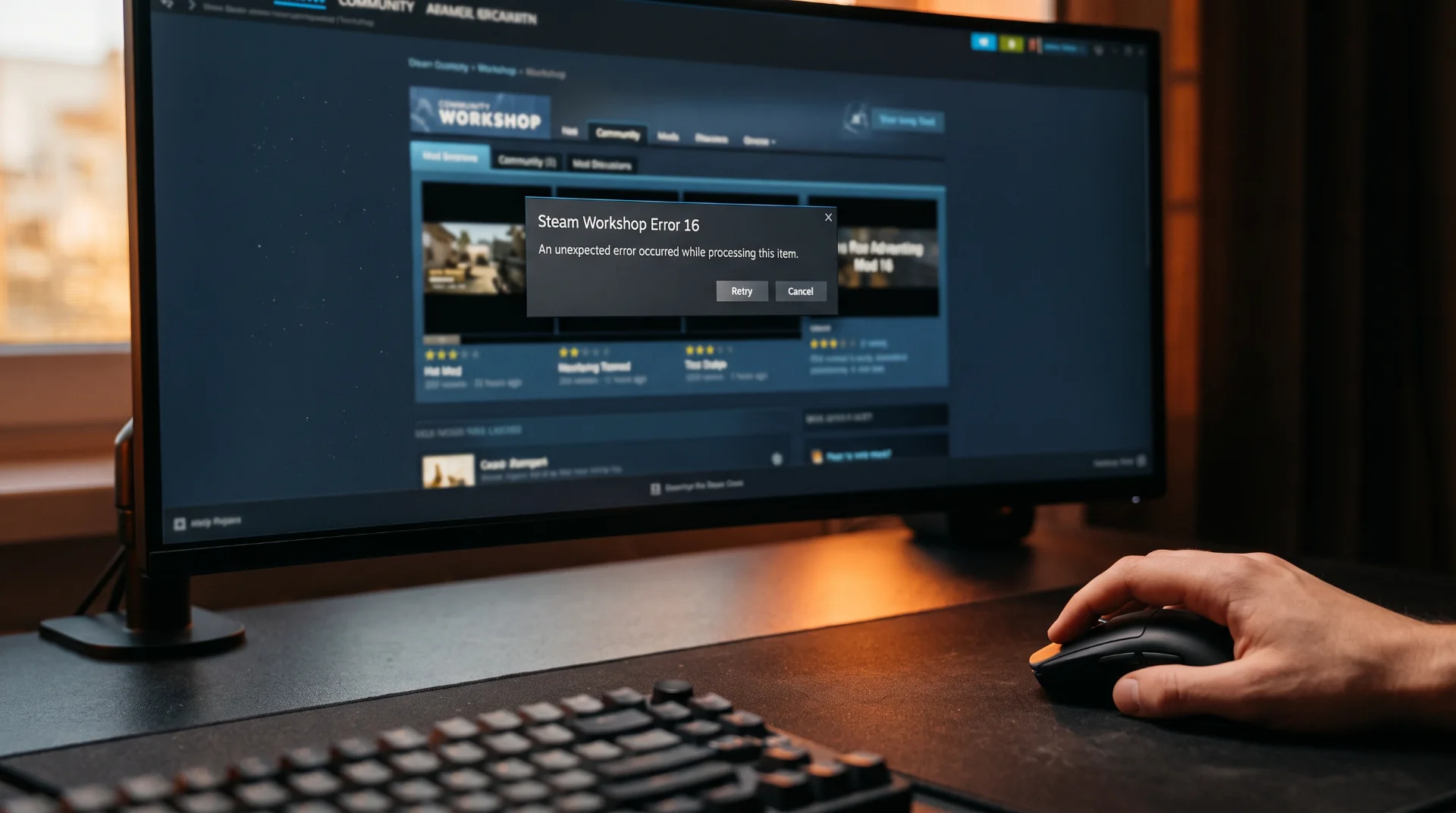
Network Disruption: Overcoming Steam Workshop Error 16
Few disruptions irritate PC modders more than finding an exciting custom asset, clicking the Subscribe button, and receiving an abrupt pop-up: Steam Workshop Error 16. Unlike generic timeouts, Error 16 explicitly halts mod installation, preventing assets from downloading into your local staging folder.
A significant breakout in search volume for steam workshop error 16 highlights that this specific error code frequently cascades across active multiplayer titles like Garry's Mod, DayZ, and Total War.
Below is an engineering analysis of why Error 16 occurs and how to clear stalled download queues to restore your community subscriptions.
The Technical Anatomy of Error 16
In Valve’s network documentation, Error 16 corresponds to a specific timeout or payload rejection during an SSL community query:
- Desynchronized Cloud Staging: When you subscribe to a mod, Steam sends an authorization token to Valve’s Workshop content distribution network (CDN). If the staging folder on your local drive contains orphaned file locks, the CDN rejects the payload.
- Antivirus Network Filtering: Third-party antivirus suites with real-time web protection often flag sudden bulk downloads of
.binand script files from community authors as suspicious, abruptly cutting the connection. - Item Deprecation or Removal: In some instances, an author removes or privatizes a mod while it remains visible on your cached browser index, throwing Error 16 when you request the retired files.
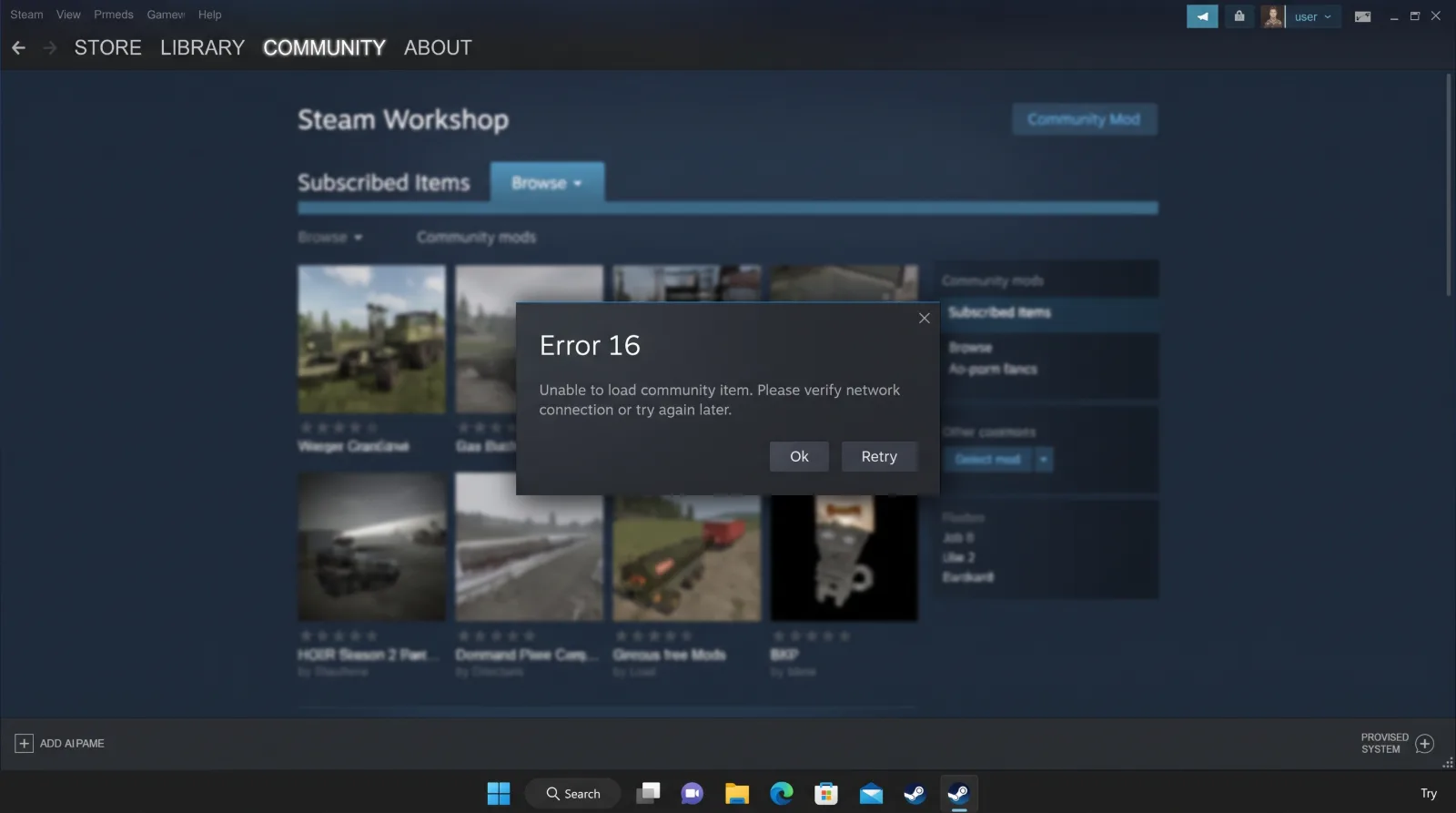
Step-by-Step Fix: Flushing the Download Staging Cache
To eliminate corrupted download locks that trigger Error 16:
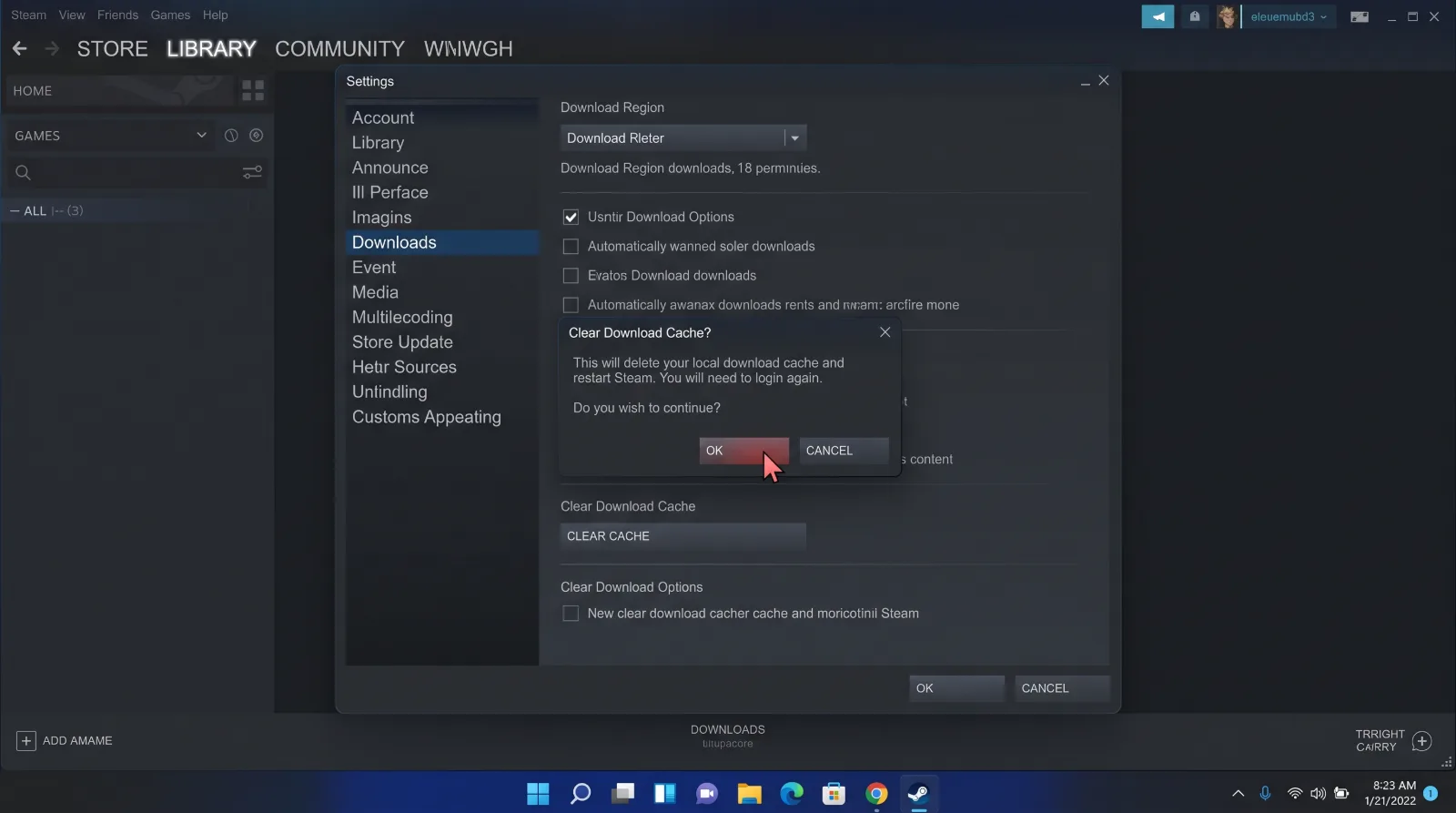
Step 1 Clear Steam Download Cache:
Open Steam > Settings > Downloads. Click on Clear Download Cache and confirm. Steam will restart and prompt you to log back in.
Step 2 Manually Purge the Workshop Staging Folder:
If the error recurs, navigate manually to your root drive:
- Open
C:\Program Files (x86)\Steam\steamapps\workshop. - Locate the folder titled downloads or temp.
- Delete all lingering files inside these folders while Steam is closed. These represent incomplete download chunks that cause verification collisions.
Step 3 Re-Subscribe to the Item:
Relaunch Steam, return to the Workshop item page, and click Subscribe again. The client will establish a clean, uncorrupted download thread.
Whitelisting Steam in Windows Defender
Ensure security software does not terminate incoming Workshop archives:
Open Windows Security > Virus & threat protection > Manage settings > Exclusions.
Add an exclusion for your entire Steam\steamapps\workshop directory to prevent false-positive file quarantine actions.