Steam Workshop Not Loading or Black Screen? Here Is the Verified Fix
Is the Steam Workshop failing to load or showing an endless black screen? Here is how to delete corrupted htmlcache files, disable GPU web acceleration, and restore your mod downloads immediately.
Endless Void: How to Fix Steam Workshop Loading Failures and Black Screens
The Steam Workshop represents the beating heart of PC modding, offering seamless, one-click access to thousands of custom maps, skins, and total conversion overhauls. However, few technical hiccups are as exasperating as opening the Workshop tab only to be greeted by an endless black void or an infinitely spinning loading circle.
Surges in queries such as steam workshop not loading and is steam workshop down demonstrate how widespread this browser rendering breakdown is across global regions.
When the Workshop refuses to draw interface elements, the culprit is almost always GPU web acceleration conflicts or a damaged HTML rendering cache.
Below is an engineering walkthrough to force-clean the Steam HTML cache and restore access to your favorite mods.
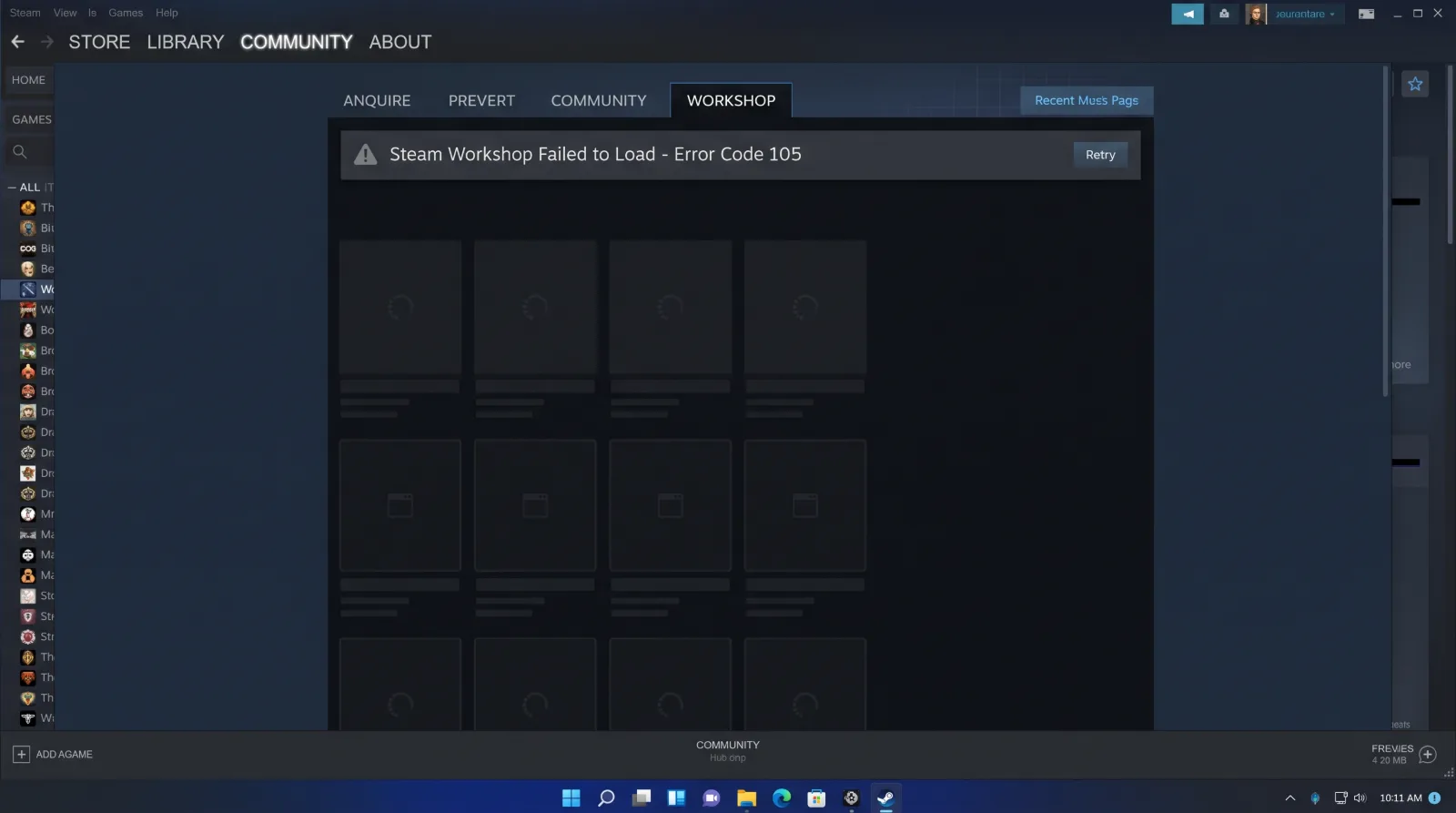
Understanding CEF Rendering Crashes
Steam’s user interface relies on isolated web helper processes called steamwebhelper.exe. When these processes encounter corrupted local graphic pipelines, they stop rendering HTML:
- Web Cache Desynchronization: If Steam closes unexpectedly while downloading large Workshop preview images, the local cache folder corrupts, preventing new web elements from rendering.
- GPU Hardware Acceleration Collisions: Certain graphics driver updates cause timing conflicts with Steam's built-in hardware accelerated web rendering, yielding a solid black panel.
- Server-Side Edge Node Dropouts: Regional content delivery nodes occasionally fail to authenticate Workshop search queries during heavy traffic peaks.
Step-by-Step Fix: Deleting the Local HTML Cache Folder
Manually deleting Steam's hidden HTML cache folder forces the client to download a clean, uncorrupted browser framework:
Step 1 Terminate Steam Completely:
Close the Steam client. Open Task Manager (Ctrl + Shift + Esc) and ensure that no lingering Steam or steamwebhelper processes remain active in the background.
Step 2 Open the Run Dialogue:
Press Windows Key + R to open the Run command window.
Step 3 Navigate to Local App Data:
Enter %localappdata%\Steam and press Enter.
Step 4 Delete the htmlcache Directory:
Locate the folder titled htmlcache. Select it and permanently delete it. Do not worry about losing saved game data; Steam will regenerate this directory cleanly upon launch.
Step 5 Relaunch Steam:
Launch Steam and navigate to the Workshop. The client will take five seconds longer than usual to rebuild the web frame before displaying community content smoothly.
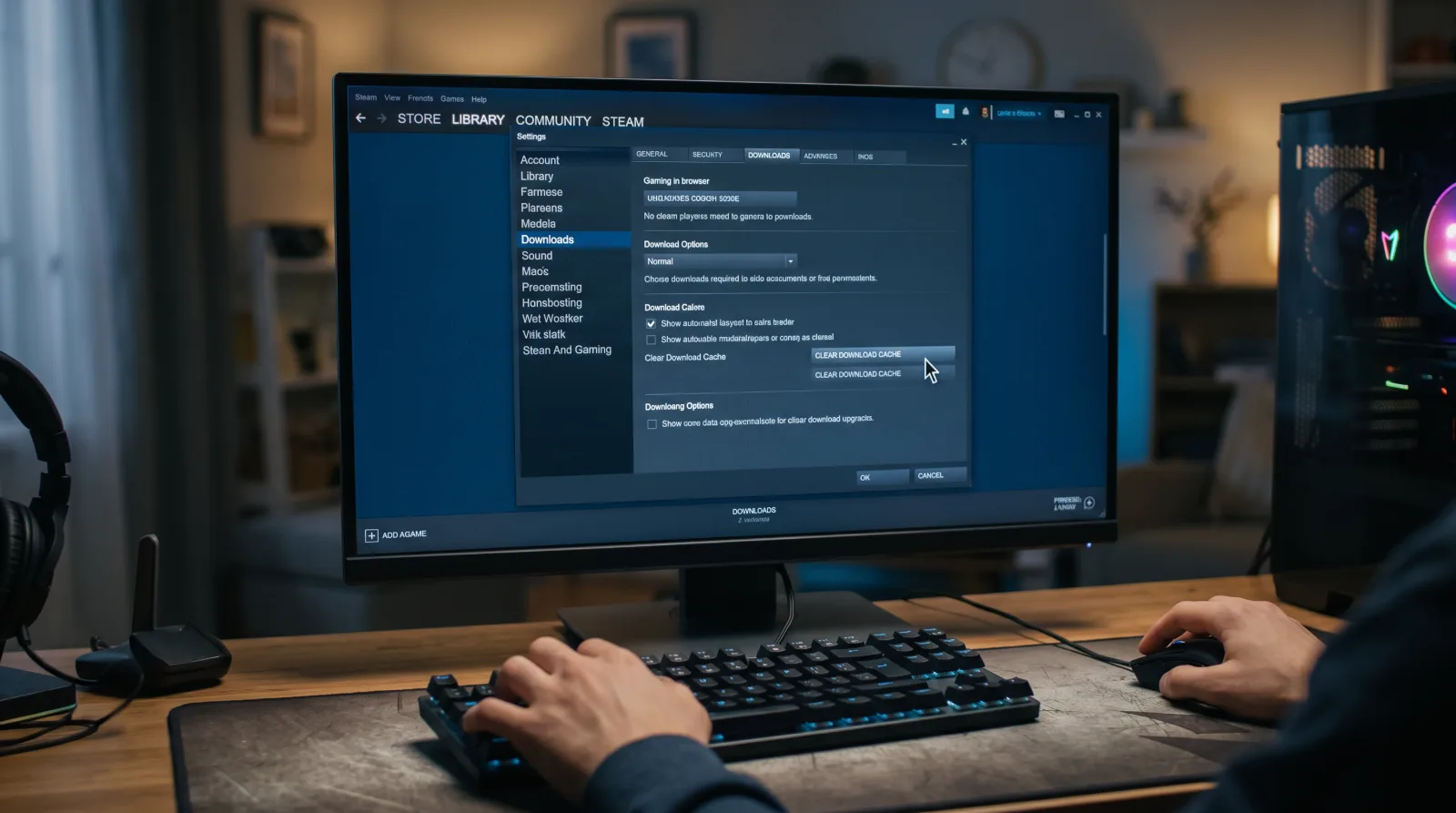
Disabling GPU Web Acceleration
If black screen freezes continue after clearing the cache:
- Open Steam > Settings > Interface.
- Scroll down to locate Enable GPU accelerated rendering in web views.
- Toggle this setting to Off.
- Restart Steam when prompted to allow your central CPU to handle interface rendering reliably.
Ensure your account trading permissions remain operational while testing modifications by reviewing our news section.